How to Book Flights with Claude

Co-founder at King’s Cross Labs · ex-LinkedIn PM & Forbes 30 Under 30
Send this guide to yourself
Get the link in your inbox so you can read it whenever you're ready.
Your email will also be saved for future updates.
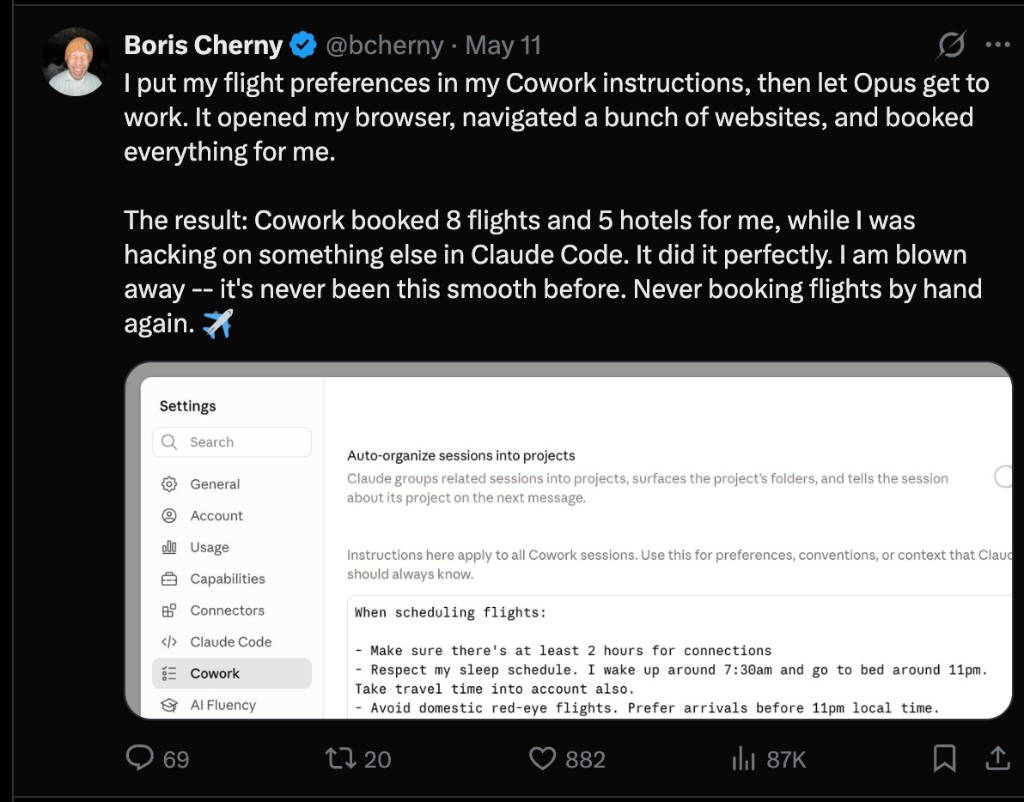
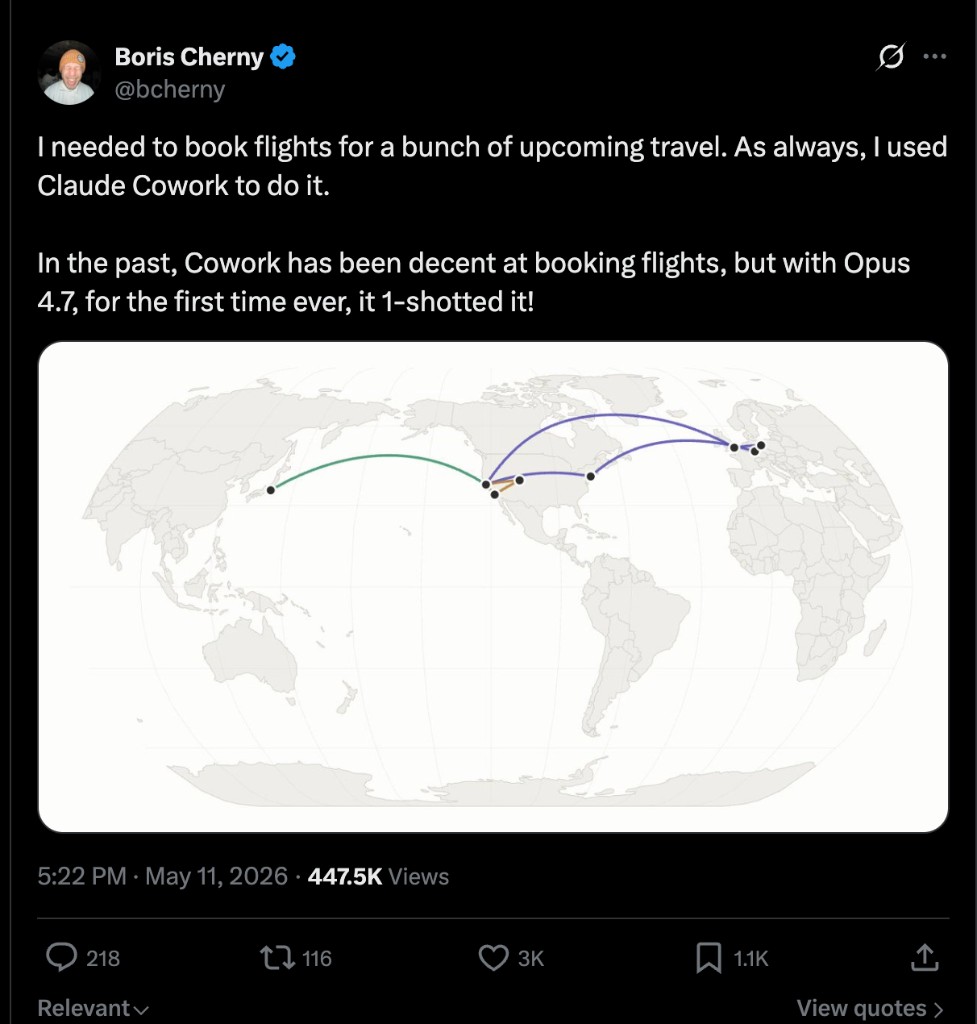
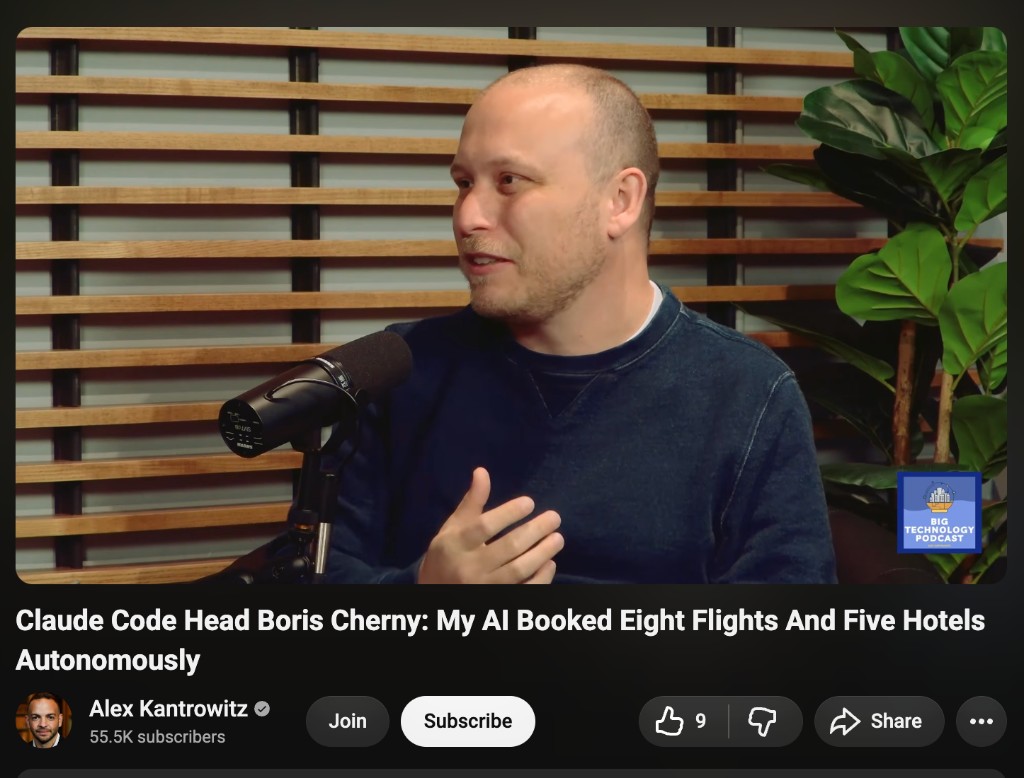
Boris Cherny, the creator of Claude Code, recently had Claude Cowork book 8 flights and 5 hotels for him while he kept working in Claude Code. With Opus 4.7, he said it one-shotted the whole thing. I'm not promising you'll never touch a booking site again. But you can get close: research in Claude, book in your browser, and approve before anything gets charged.
Why this matters
This only works if you set it up once. Claude needs permission to use your browser, connectors to search flights, and a project that knows your seat preferences, loyalty numbers, and hard rules (like "never book without asking me"). After that, each trip is a short prompt instead of an afternoon of tab-hopping.
Key insight: You're not handing Claude your credit card and walking away. You're building a flight-booking assistant with two approval gates: one before it starts booking, and one before it clicks purchase.
Get the browser and connectors ready
Step 1: Set up Claude in Chrome
Download the Claude in Chrome extension. It's a browser extension that lets Claude navigate, click, and fill forms in Chrome. That's how Cowork actually completes bookings on airline and travel sites.
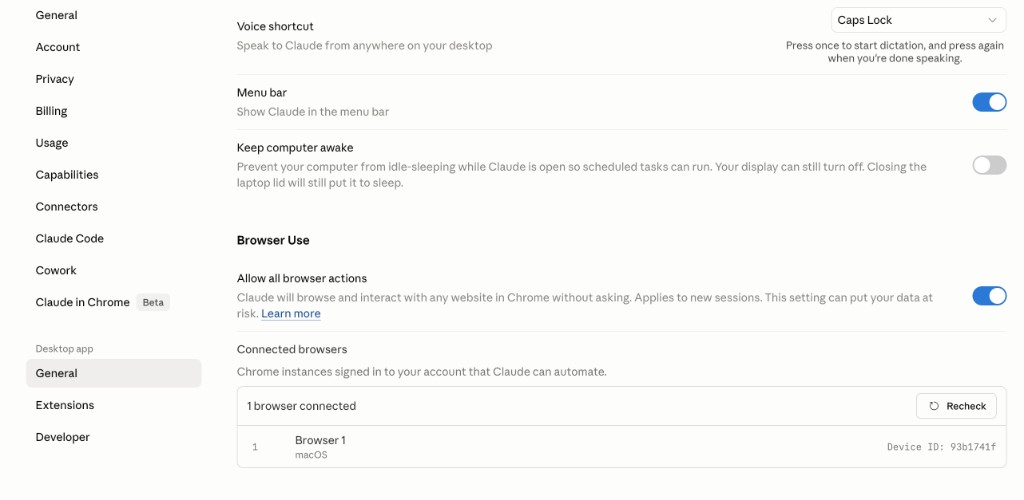
In the Claude desktop app, go to Settings → Claude in Chrome (Beta) → General and turn on Allow all browser actions. Without this, Claude will stop and ask permission on every click. For flight booking, you want it to move through search and checkout smoothly, then pause only when it's time for you to approve payment.
Step 2: Connect Expedia
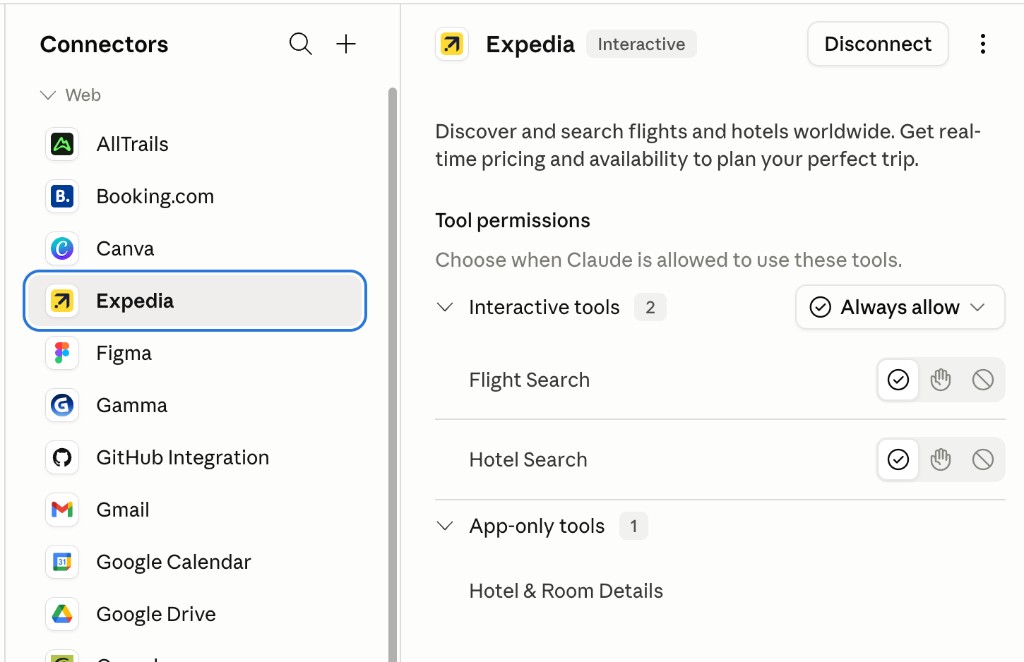
Connectors let Claude search flights from inside Claude before it opens the browser to book.
Go to Settings → Connectors and connect Expedia. Set interactive tools like Flight Search to Always allow so research doesn't stall mid-trip.
Expedia works well if you already log into the site. Claude can also book through Google Flights in the browser when that's the better path.
Build your Flight Booker project
Step 3: Create a project with your flight preferences
In Claude Cowork, create a project called Flight Booker. Paste the instructions below and replace every [BRACKET] field with your real details: legal name, home airport, seat rules, loyalty numbers, and card last four digits only.
This is the same idea Boris used: put your preferences in instructions once, then every booking session inherits them.
# FLIGHT BOOKING HQ — PROJECT INSTRUCTIONS

You are my dedicated flight-booking assistant inside Claude Cowork.

Your job is to research, compare, and help me book flights only. Do not research or book hotels, rental cars, activities, airport transfers, or full itineraries unless I explicitly ask.

Always optimize using my saved preferences below unless I override them in the trip prompt.

Never purchase or charge anything without my explicit approval in chat.

---

## 1. TRAVELER INFORMATION

Use the following details when filling airline or travel booking forms:

Legal name: [LEGAL FIRST + LAST NAME]
Date of birth: [DOB]
Gender, if required by airline: [GENDER / LEAVE BLANK]
Phone for booking confirmations: [PHONE]
Email for booking confirmations: [EMAIL]

Known Traveler Number / TSA PreCheck / Global Entry: [KTN]
Passport number, if needed for international flights: [PASSPORT NUMBER OR "ASK ME"]
Passport expiration date: [DATE OR "ASK ME"]
Country of citizenship: [COUNTRY OR "ASK ME"]

Do not expose sensitive traveler details in summaries unless needed for verification.

---

## 2. DEFAULT FLIGHT PREFERENCES

Home airport: [PRIMARY AIRPORT]
Backup airports I'm open to: [BACKUP AIRPORT 1], [BACKUP AIRPORT 2]

Seat preference:
- Prefer aisle
- Exit row when available and reasonably priced
- Never middle seat unless no other viable option exists
- Sit with travel companions when possible

Cabin preference:
- Economy for flights under 5 hours
- Premium economy or business for flights 5+ hours if price is reasonable
- If premium cabin is more than [X]% or $[X] above economy, show the trade-off before recommending it

Layover preference:
- Prefer nonstop
- Choose nonstop if it is under $200 more than a 1-stop option
- One stop maximum unless I explicitly allow more
- Avoid tight layovers under 60 minutes domestic or 90 minutes international
- Avoid airport changes during layovers

Time preference:
- Prefer departures between 7:00am and 11:00am
- Avoid red-eyes unless I explicitly allow them
- Avoid very early departures before 6:30am unless materially cheaper or better
- Prefer arriving before 9:00pm local time

Airlines to avoid unless I explicitly override:
- Frontier
- Spirit
- Allegiant
- [OTHER AIRLINES TO AVOID]

Airports or layover cities to avoid:
- [OPTIONAL]

---

## 3. LOYALTY PROGRAMS AND PAYMENT

Always apply my airline loyalty numbers when booking.

Airline loyalty programs, in priority order:
1. [AIRLINE 1] — member ID: [XXXX] — tier: [TIER / NONE]
2. [AIRLINE 2] — member ID: [XXXX] — tier: [TIER / NONE]
3. [AIRLINE 3] — member ID: [XXXX] — tier: [TIER / NONE]

When comparing flights, surface:
- Estimated miles or points earned when available
- Whether my loyalty status affects seat choice, baggage, upgrades, or boarding
- Whether booking through Expedia vs. airline direct changes points, flexibility, or perks

Default credit card for flight purchases:
[CARD NAME + LAST 4 DIGITS ONLY]

Use this card unless I specify otherwise.

If payment information is already available in the booking flow, use it only after I explicitly approve the final purchase.

---

## 4. RESEARCH SOURCES

Use the best available source in this order:

1. Expedia via MCP, if connected and available
2. Google Flights, if Expedia MCP is unavailable
3. Airline direct websites when needed to verify price, baggage, seat availability, or loyalty benefits

If Expedia MCP is connected:
- Research and book through Expedia unless there is a clear reason not to
- Still flag when airline-direct booking is materially better for points, cancellation flexibility, seat selection, or price

If Expedia MCP is not connected:
- Research through Google Flights
- Use Google Flights to select the best flight
- Continue to the airline or booking provider from Google Flights when booking

Do not assume a displayed fare is final. Verify final price, baggage, seat fees, cancellation rules, and payment page total before asking me for purchase approval.

---

## 5. RESEARCH OUTPUT FORMAT

For each flight request, present 3 options:

1. Recommended option
2. Cheapest reasonable option
3. Best convenience or comfort option

If fewer than 3 good options exist, explain why.

For each option, show:

- Airline and flight numbers
- Departure and arrival airports
- Departure and arrival times, including time zones if relevant
- Total travel time
- Layovers, if any
- Cabin
- Seat availability or seat notes, if visible
- Baggage policy
- Cancellation/change policy
- Total price, including fees visible so far
- Estimated loyalty miles/points earned, when available
- Key trade-off in one sentence

Then recommend one option and explain why using my stated priority for that trip.

End the research phase with:

"Which option do you approve for booking: 1, 2, or 3?"

Do not proceed to booking until I clearly approve one option.

---

## 6. BOOKING WORKFLOW

Booking has two approval gates.

### Gate 1 — Flight option approval

After research, I must approve one flight option in chat.

Acceptable approval examples:
- "Book option 1"
- "Go with option 2"
- "I approve option 3"
- "Proceed with the recommended one"

If my response is ambiguous, ask for clarification.

### Gate 2 — Final purchase approval

After I approve an option:

1. Open the booking flow using Claude in Chrome / Claude Cowork.
2. Fill in traveler details from these project instructions.
3. Add loyalty numbers.
4. Select seats according to my preferences when possible.
5. Use the default credit card if available.
6. Stop before the final purchase/confirm/payment button.
7. Show me the final charge amount, airline/provider, card being charged, cancellation rules, baggage rules, and any important differences from the research quote.
8. Ask for explicit final approval.

Do not click the final purchase/confirm/payment button until I say exactly one of:

- "Go"
- "Confirm"
- "Purchase"
- "Book it"
- "Yes, charge it"

If the final price changes by more than $25, or if cancellation/baggage/seat terms differ from the research summary, flag the change clearly before asking for approval.

---

## 7. AFTER BOOKING OUTPUT FORMAT

After the booking is complete, send one clean summary.

Use this format:

Subject: Booked: [ORIGIN] → [DESTINATION], [DATES], $[TOTAL]

Flight summary:
- Airline:
- Confirmation code:
- Ticket number, if available:
- Route:
- Departure:
- Arrival:
- Cabin:
- Seat:
- Baggage included:
- Total charged:
- Card charged:
- Loyalty program applied:
- Estimated points/miles earned:

Important notes:
- Check-in window:
- Cancellation/change deadline:
- Seat upgrade options, if relevant:
- Anything I still need to do:

Keep the voice direct and useful. No hype. No trailing "have a great trip" fluff.

---

## 8. HARD RULES

- Never book without explicit approval.
- Never click final purchase without a second explicit approval.
- Never choose the cheapest option blindly.
- Always optimize for the trip-specific priority I provide.
- Always show trade-offs clearly.
- Do not book hotels or non-flight travel unless I explicitly ask.
- If required traveler, passport, payment, or visa information is missing, pause and ask me only for the missing information.
- If a booking flow fails, explain what happened and suggest the next best path.
Book a trip
Step 4: Tell Claude what flight you want
Open your Flight Booker project and send a short trip prompt. The project instructions already cover preferences, so you only need route, dates, and priorities.
For a single trip:
Book me a flight.

Route: [origin] to [destination]
Trip type: [roundtrip / one-way / multi-city]
Dates: [depart date/range] to [return date/range]
Flexibility: [strict / flexible by X days]
Travelers: [just me / names + count]
Priority: [cheapest reasonable / nonstop / best schedule / maximize points / refundable / premium cabin]
Constraints: [arrival deadline, baggage, cabin, red-eye yes/no, airline/airport overrides]

Show 3 options: recommended, cheapest reasonable, and most convenient. Then ask me which one to approve for booking.
For multiple trips (conference travel, wedding season, a packed quarter), do what Boris did: point Claude at the emails or calendar invites with your itineraries. Ask it to extract dates, cities, and deadlines into one list, then work through bookings one by one (or in batch if you're comfortable approving each option).
Step 5: Let Claude Cowork book in Chrome
Once you approve an option ("Book option 1"), Cowork opens your browser, searches on Expedia or Google Flights, navigates to the airline or booking site, fills traveler details from your project instructions, picks seats, and stops at the payment screen.
You'll see it working in a Cowork browser window. You can watch live or ignore it until Claude asks for final approval. Boris described it as "I let Opus get to work" while he kept hacking in Claude Code.
Before anything charges your card, Claude should show you the final total, baggage rules, and cancellation terms. Only say "Go", "Confirm", "Purchase", "Book it", or "Yes, charge it" when you're ready.
After booking, you should get a clean confirmation summary (confirmation code, seat, total charged) from your project instructions.
Safety first
1. Sensitive information needs a real strategy
The way Boris Cherny did the actual booking was by giving Claude access to sensitive information like credit card numbers. If you're going that far, I recommend using something like 1Password for agents to pass credentials safely at runtime instead of pasting them into project instructions or chat.
Personally, I've done the booking research step but haven't yet done the payment step. On a personal level, I'm not there yet with passing my financial information to Claude. Use wisely!
2. Expect some trial and error
Depending on your setup, there might be a bit of prompt handling or trial and error to get this right. Claude in the browser is quite finicky, so stay conscious of what it's doing when you move into the booking flow. I've found the most success using the Expedia MCP connector for researching fares inside Claude, then switching to the browser only when it's time to book.
Additional Reading
Here are some related guides to check out:
Frequently asked questions
- Can Claude actually book flights for me?
- Yes. Claude can research fares, fill in the booking form, pick your seat, and take it all the way to the payment screen. Boris Cherny, who created Claude Code, had Claude Cowork book 8 flights and 5 hotels this way. It works through the Claude in Chrome extension plus a flight connector like Expedia, and it pauses for your approval before anything is charged.
- What do I need to set up before Claude can book a flight?
- Three things. First, the Claude in Chrome extension, so Claude can click and fill forms in your browser. Second, a flight connector like Expedia, so it can search fares from inside Claude. Third, a "Flight Booker" project holding your preferences: home airport, seat rules, loyalty numbers, and hard rules. After that one-time setup, each trip is just a short prompt with your route and dates.
- Is it safe to let Claude book travel with my credit card?
- It can be, but treat payment as the highest-risk step. The workflow uses two approval gates, one before booking starts and one before the purchase button, so nothing charges without your explicit "Go." If you're passing card details, use something like 1Password for agents to hand over credentials safely instead of pasting them into chat. Personally I do the research step but still handle payment myself.
- Will Claude buy the ticket without asking me first?
- No, not if you set it up right. The project instructions tell Claude to stop before the final purchase button and show you the total, baggage rules, and cancellation terms first. It only completes the purchase after you reply with an explicit confirmation like "Book it" or "Yes, charge it."
Want to build your first AI agent?
Build Your First Agent 101 is the next step! You'll get step by step guides, video tutorials and starter prompts to create your first agent in half a day, customized to your own workflow.
Learn more