How to Setup Claude (10 Minute Setup Guide)

Co-founder at King’s Cross Labs · ex-LinkedIn PM & Forbes 30 Under 30
Send this guide to yourself
Get the link in your inbox so you can read it whenever you're ready.
Your email will also be saved for future updates.
For months, I was using Claude like a smarter Google. Type in a question, get an answer, close the tab. Technically using AI. Not actually getting value from it.
Apparently 75% of people do the same thing. And the fix isn't learning to write better prompts. It's a one-time setup that takes about 10 minutes and changes how every session works after that.
These are the four things I set up in Claude Cowork that made it feel less like a chatbot and more like something that actually knows how I work.
The setup most people never do
1. Give it global instructions
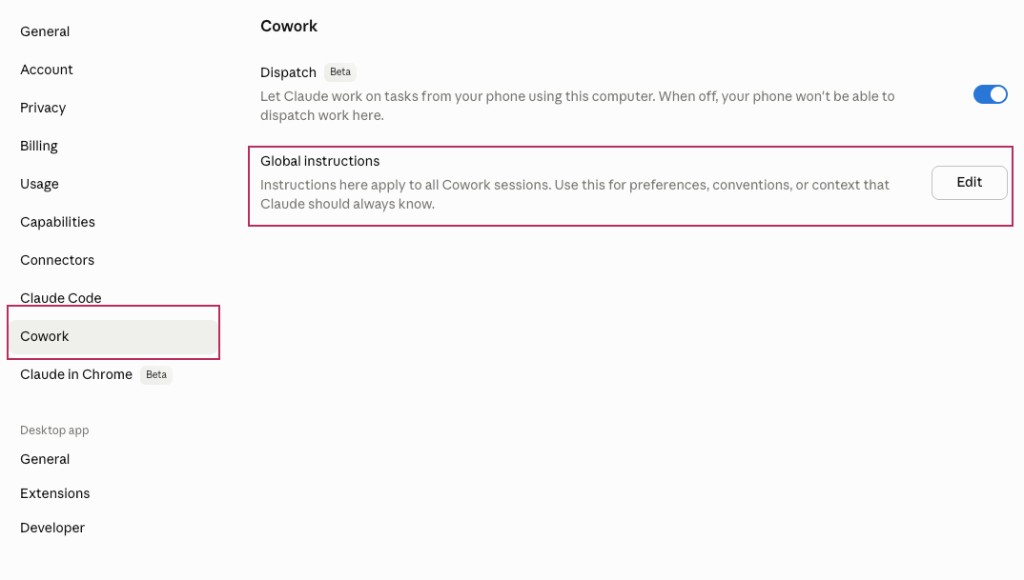
Open Claude, go to the Cowork tab, click Settings, then Global Instructions. This is where you tell Claude who you are: your job, what you're building, your preferences, how you like to communicate.
Once it's there, Claude carries that context into every session. You stop explaining yourself from scratch every time you open a new chat.
2. Ask it to ask you questions first
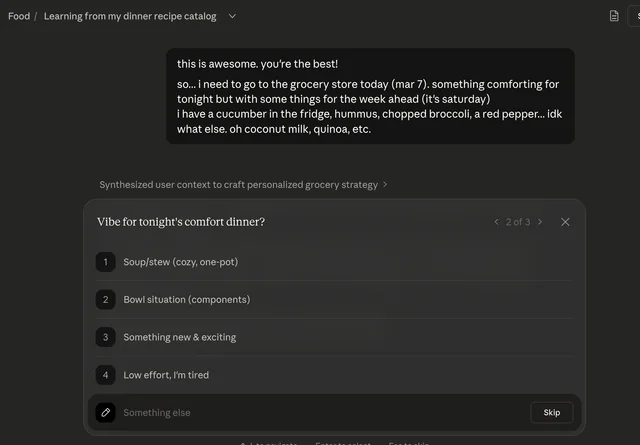
Add this to any prompt before you hand over a real task: "Before you start, ask me clarifying questions."
Claude will probe for what you actually mean. The output it gives you after that is built around your specific situation, not a generic response written for anyone. This one habit makes a noticeable difference, every time.
The habits that save the most time
3. Use skills
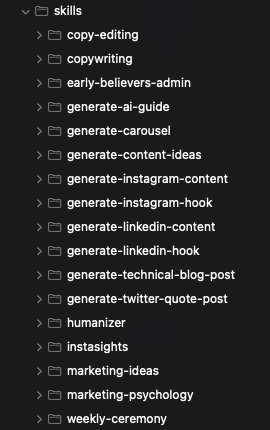
Skills let you save repeatable workflows so you stop re-explaining yourself every single time. You can build your own in Claude Cowork or browse ready-made ones at skills.sh.
If you write a lot of emails and always want the same tone, structure, and style, a skill captures that once. After that: run the skill, give it the specific context, done. I use skills daily. They're the closest thing to teaching Claude how you work, permanently.
4. Connect Claude to your apps
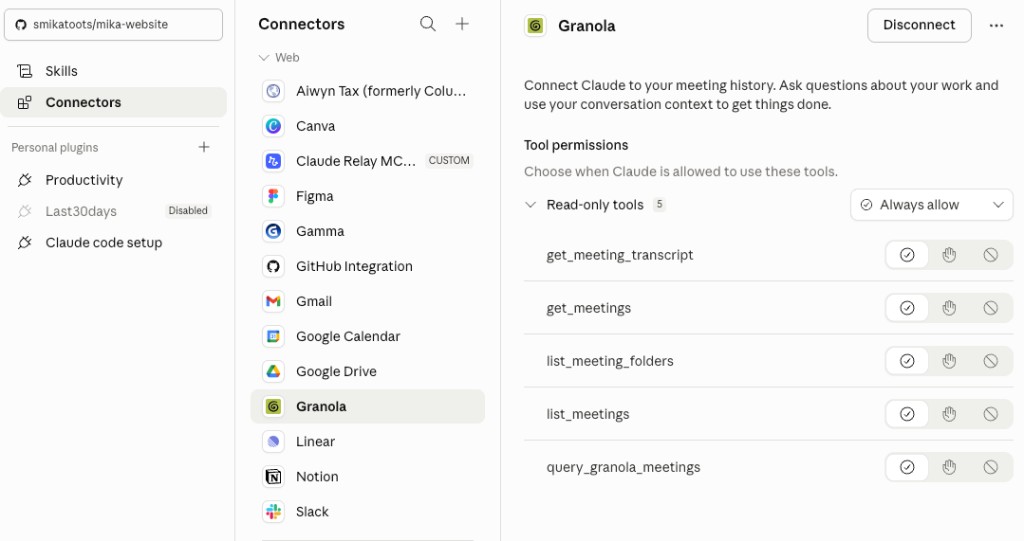
This is where it starts feeling like an actual assistant. Go to Claude Cowork's integrations and connect the tools you already use: Notion, Google Calendar, Gmail, your meeting notes, your to-do list.
Once connected, you can ask it things like "pull the action items from my last meeting and draft a follow-up email" and it will actually do it, across your real tools. That's the shift. It stops living in a chat window and starts working inside your workflow.
Quick aha! moments
5. Organize your Desktop
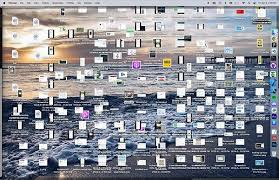
My first "wait, it can do that?" moment was organizing 100 photos sitting in a pile on my Desktop. (If you've seen my Desktop, you know.) In one prompt, I asked Claude Cowork to sort the photos into specific folders with consistent naming. Done.
It sounds small, but that's the point. It's something you can try in the next five minutes, before you've set up a single workflow. A quick win that makes the whole thing click.
Worth pausing on: Every prompt you send without context is a guess. Global instructions, clarifying questions, skills, and integrations give Claude what it needs to actually work for you, not just respond to you.
Where to start
If you're brand new to Claude, start with steps 1 and 2. Get your global instructions in and practice asking Claude to ask you questions before it answers. Those two things alone will change the quality of what you get back.
If you already use Claude regularly, add steps 3 and 4. Pick one workflow you repeat every week, turn it into a skill, then connect one app you actually use and run a real task through it.
If you're a founder or operator, do all five in order. The compound effect kicks in fast. Within a week you'll have a setup that actually knows your business instead of starting from zero every time.
Additional Reading
Here are some related guides to check out:
Frequently asked questions
- How do I set up Claude so it actually knows how I work?
- A one-time, roughly 10-minute setup in Claude Cowork does it: add Global Instructions telling Claude who you are and how you work, get in the habit of asking it to ask you clarifying questions first, save repeatable workflows as skills, and connect your apps like Notion, Calendar, and Gmail. Together those make every session start with your context instead of from zero. Most people skip this and use Claude like a smarter Google.
- What's the single easiest thing to improve my Claude results?
- Add one line before any real task: "Before you start, ask me clarifying questions." Claude probes for what you actually mean, and the output comes back built around your specific situation instead of a generic answer. It's a tiny habit that makes a noticeable difference every time.
- How do I connect Claude to my apps like Gmail and Calendar?
- In Claude Cowork, go to integrations (Connectors) and connect the tools you already use: Notion, Google Calendar, Gmail, your meeting notes, your task list. Once connected, you can ask things like "pull the action items from my last meeting and draft a follow-up email" and it works across your real tools. That's the shift from a chat window to something working inside your workflow.
Want to build your first AI agent?
Build Your First Agent 101 is the next step! You'll get step by step guides, video tutorials and starter prompts to create your first agent in half a day, customized to your own workflow.
Learn more