3 Claude Commands to Manage Your Sessions

Co-founder at King’s Cross Labs · ex-LinkedIn PM & Forbes 30 Under 30
Send this guide to yourself
Get the link in your inbox so you can read it whenever you're ready.
Your email will also be saved for future updates.
Did you know the longer you chat with Claude, the dumber it gets? There are a few one-word fixes most people never type, and each takes two seconds.

Why this matters
Claude Code has a limited context window. Think of it as working memory: everything in your current session lives there. The longer the conversation runs, the more clogged it gets. Claude slows down, forgets earlier details, and starts giving you answers that feel off.
You can see it in the status bar. As the context window fills up, performance drops. It's not that Claude got worse. Your session just got heavy.
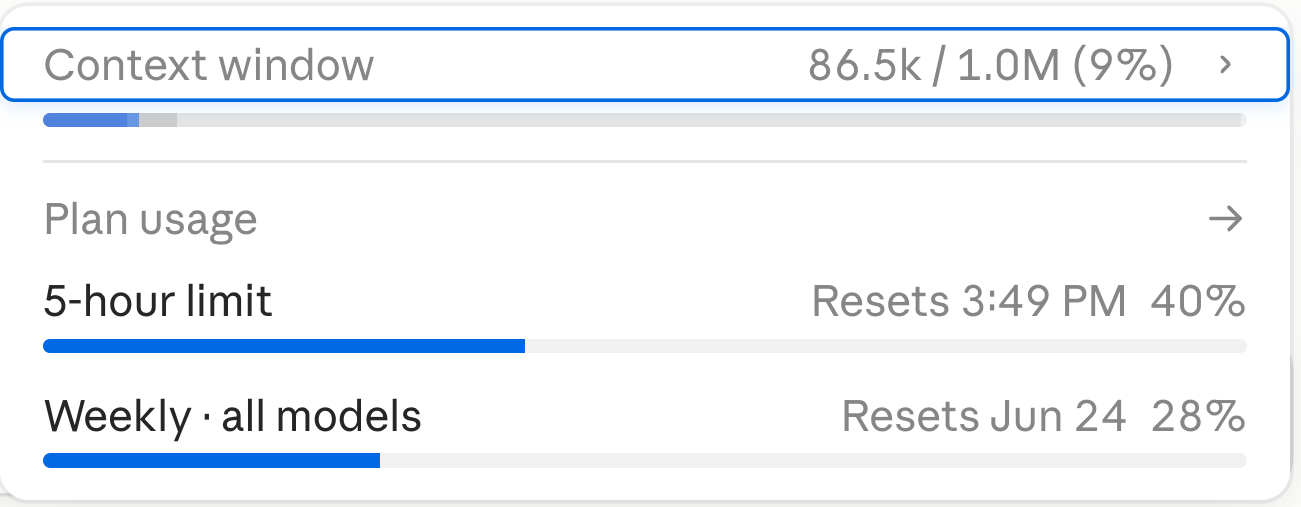
Key insight: Claude doesn't actually get dumber. Your context just gets heavy, and these three commands keep it light.
Three commands that keep Claude sharp
1. /clear when you start a new task
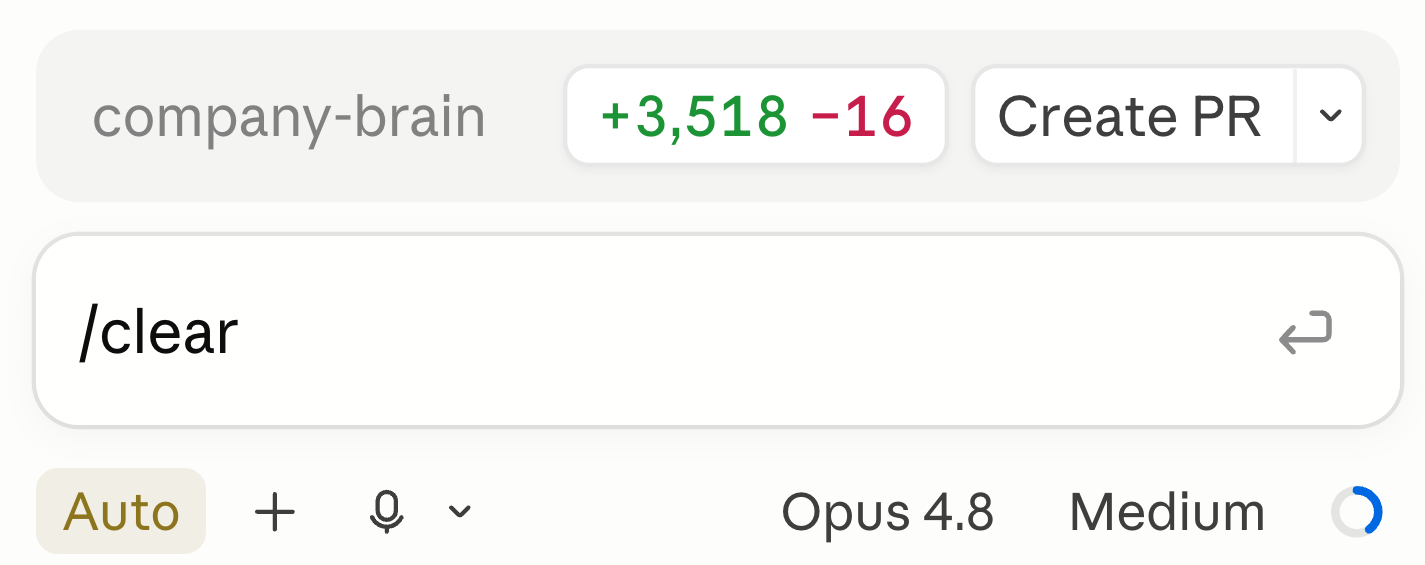
When you finish one task and move to another, type /clear. It wipes the current context and gives Claude a blank slate. The old conversation isn't gone. You can jump back anytime with /resume.
Use this between unrelated tasks. Finished debugging auth? Cleared. Now you're writing a marketing email? Start fresh instead of dragging 40 minutes of code errors into a copywriting session.
2. /compact when you're deep in a long task
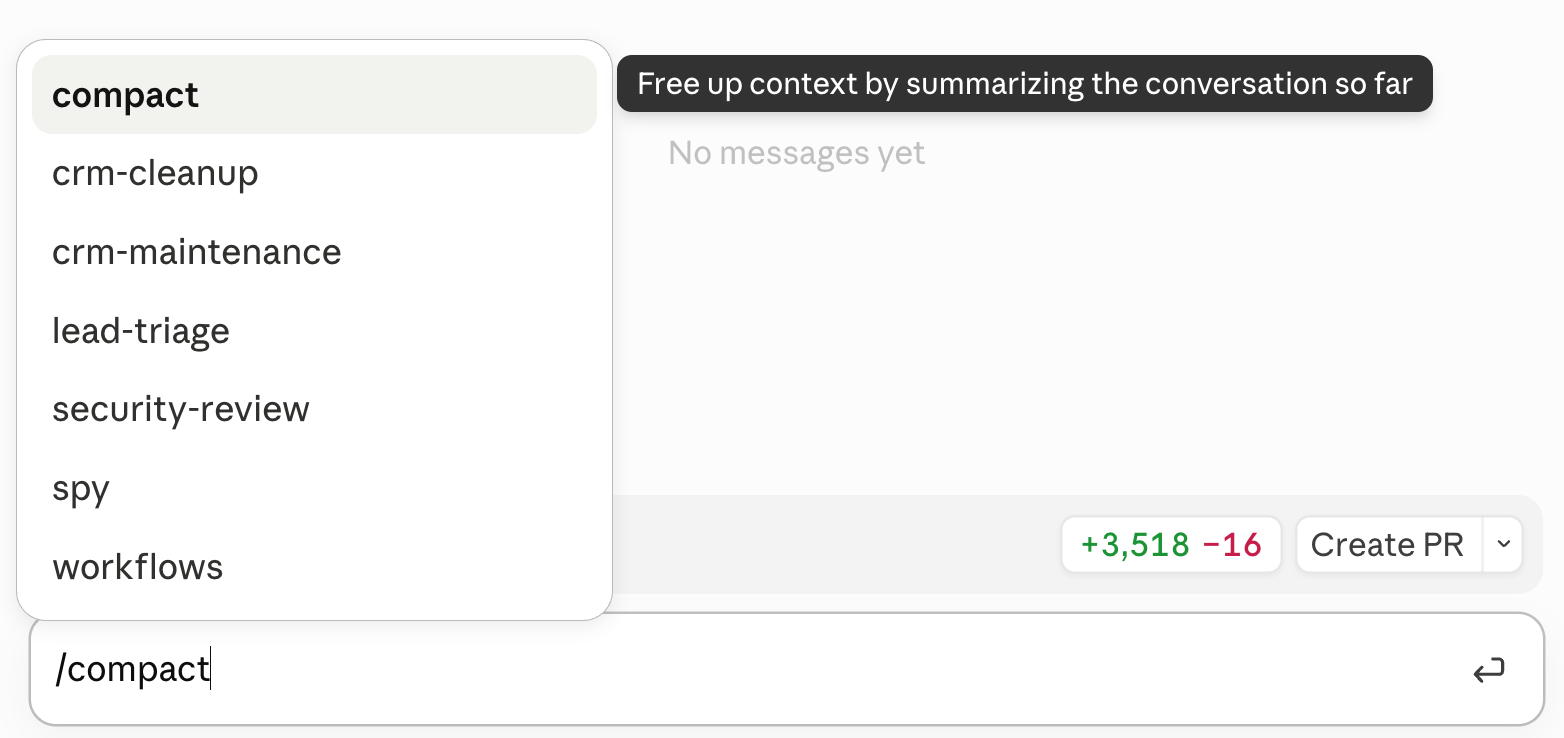
When you're mid-task and Claude starts feeling sluggish, but you're not done yet, type /compact. It summarizes everything so far and keeps going from that summary instead of the full pile of messages.
You can even point it: /compact focus on the auth bug. That tells Claude what to preserve and what to trim. Useful when you've been iterating for an hour and only the last few decisions actually matter.
3. /model to match the model to the job (and save money)
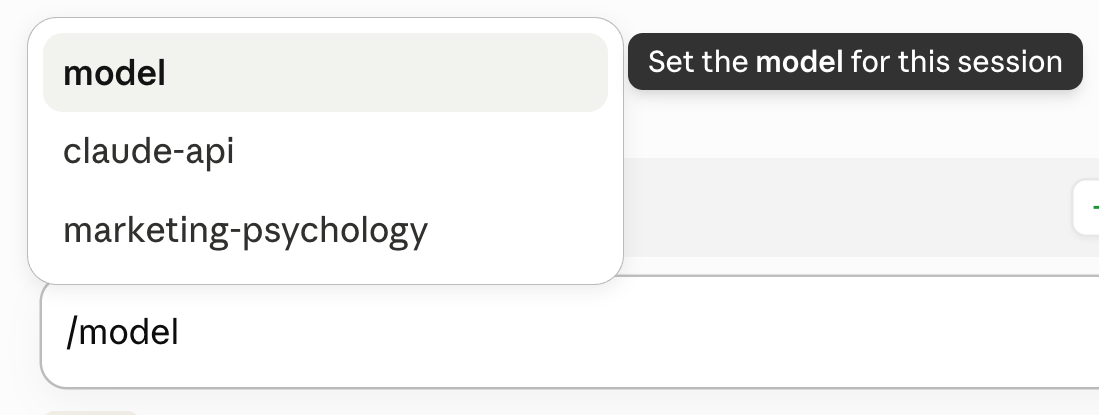
You don't need the smartest model for everything. I use Opus to plan a complex task, then switch to Sonnet to build, organize files, or manage GitHub. Type /model and pick.
Opus is great for hard thinking. Sonnet is fast and cheap for execution. Switching mid-session means you're not burning premium tokens on tasks that don't need them.
When to use which
- New task, unrelated to what you were doing?
/clear - Same task, but the session is getting long and slow?
/compact - Planning is done, now you're executing?
/model(Opus → Sonnet)
That's it. Three commands, two seconds each, and Claude stays sharp instead of drowning in its own history.

Here are some related guides to check out:
Frequently asked questions
- Why does Claude get slower or dumber the longer I chat?
- It's not that Claude got worse. Your context window (its working memory) fills up as the session runs, so it slows down and starts forgetting earlier details. You can watch it happen in the status bar. Three commands keep it light: /clear, /compact, and /model.
- What's the difference between /clear and /compact in Claude Code?
- Use /clear when you switch to a new, unrelated task. It wipes the current context and gives Claude a blank slate (the old conversation isn't gone; jump back with /resume). Use /compact when you're mid-task and Claude feels sluggish but you're not done, and it summarizes everything so far and keeps going from that summary. Clear between tasks, compact within one.
- How do I make Claude Code cheaper without losing quality?
- Switch models to match the job with /model. Use Opus to plan hard things, then drop to Sonnet to build, organize files, or manage GitHub. Opus is for hard thinking; Sonnet is fast and cheap for execution. Switching mid-session means you stop burning premium tokens on tasks that don't need them.
- Can I tell /compact what to keep?
- Yes. Point it, like "/compact focus on the auth bug," and it preserves what matters while trimming the rest. That's useful when you've been iterating for an hour but only the last few decisions still matter. It keeps the session moving without dragging the full history along.
Want to build your first AI agent?
Build Your First Agent 101 is the next step! You'll get step by step guides, video tutorials and starter prompts to create your first agent in half a day, customized to your own workflow.
Learn more