How to Setup Claude for Small Business

Co-founder at King’s Cross Labs · ex-LinkedIn PM & Forbes 30 Under 30
Send this guide to yourself
Get the link in your inbox so you can read it whenever you're ready.
Your email will also be saved for future updates.
Small businesses make up about 44% of U.S. GDP. Most of that work still runs on QuickBooks, PayPal, HubSpot, and a pile of tabs nobody wants to open on a Sunday night.
Anthropic just shipped Claude for Small Business: a plugin inside the Claude Cowork desktop app that hooks into those tools and ships with 15 workflows for payroll prep, month-end close, invoice chasing, and the rest. I have not run payroll through it yet, but the setup itself is straightforward if you have the right plan and an updated Cowork build.
Why bother
A lot of owners already pay for Claude and still use it like a smarter Google. One question, one answer, close the tab. The Small Business plugin is different because it runs in Cowork on your Mac or Windows machine and can read whatever your connected accounts can see. Plan on about 15 minutes to install the plugin, run onboarding, and connect your first tool or two.
Claude inherits the permissions of whatever account you sign in with. If your bookkeeper cannot open payroll in QuickBooks today, Claude will not see payroll either. Most owners should connect with their own admin login.
Before you start
You need three things:
-
A paid Claude plan: Pro ($20/mo), Max ($100 to $200/mo), Team, or Enterprise. Claude for Small Business is included on paid plans at no extra cost. The free tier does not include it.
-
The Claude Cowork desktop app on Mac or Windows. Cowork and this plugin do not run in the browser or on mobile. Download from claude.com/download if you need it, then update to the latest version.
-
Admin access to the tools you want to connect: QuickBooks Online, PayPal, HubSpot, Canva, DocuSign, Google Workspace, Microsoft 365. You do not need all of them. Start with what you actually use.
Set up Claude for Small Business
1. Open the Directory and install the plugin
Open Claude Cowork. Open the Directory from the sidebar, click Plugins, and search for small business. You should see Small Business by Anthropic in the results.
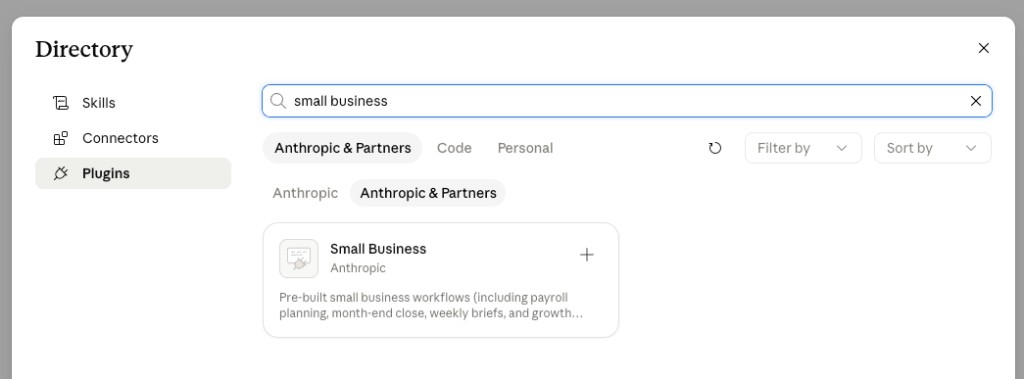
Click the card, then hit Install on the plugin page. The bundle downloads as one package: workflows, skills, and connector definitions. Usually about 60 seconds.
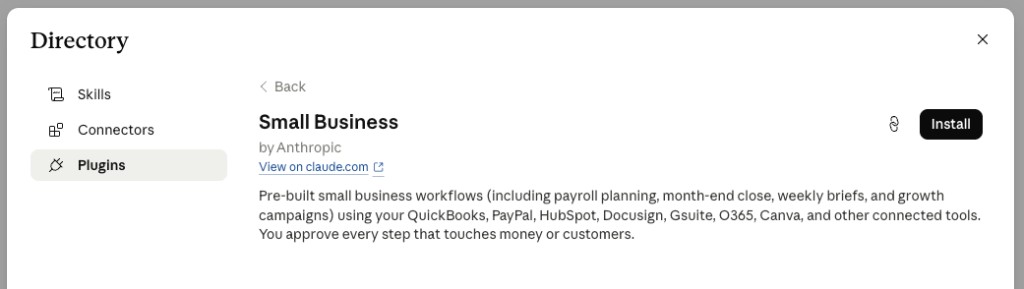
If Small Business does not show up, Cowork is probably on an old build. Go to Settings, click Check for updates, install, and restart. That fixes it most of the time.
2. Type /smb-onboard
In a new chat, type /smb-onboard and send. Claude walks you through onboarding: your business, your tools, which workflows you want first. You do not have to guess the order.
Prefer plain English? Type "get me started" instead. Same flow, less formal.
3. Connect your tools
When Claude asks you to connect tools, start with the ones you touch every week. At launch, the main connectors are:
- QuickBooks (accounting, invoicing, payroll prep)
- PayPal (payments, settlements, refunds)
- HubSpot (leads, deals, contacts, campaigns)
- Canva (marketing creative)
- DocuSign (contracts and agreements)
- Google Workspace (Gmail, Drive, Calendar)
- Microsoft 365 (Outlook, Word, Excel, Calendar)
You can add Slack, Stripe, Square, Gmail, and Outlook later. For each connector, Claude opens that tool's OAuth login in your browser. Sign in once, approve permissions, done. About 60 to 90 seconds per tool.
4. Run your first workflow
After install, open the Small Business plugin in your plugins list to see every skill and slash command. Type / in chat to invoke one, or let Claude pick the right workflow for the task.
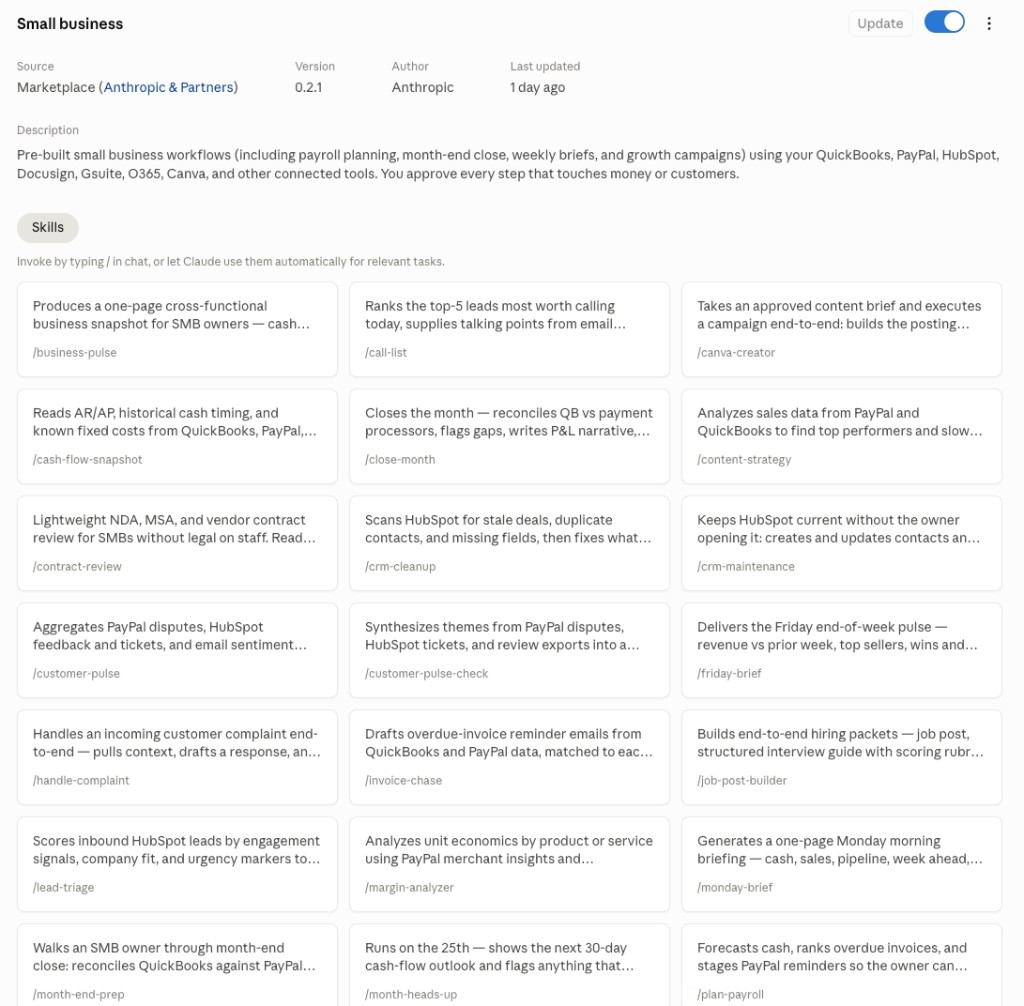
A few worth trying first:
/plan-payrollforecasts your next payroll run from QuickBooks and flags anything unusual/close-monthreconciles books, finds missing entries, prepares month-end close/monday-briefgives you a one-page weekly business pulse/canva-creatorruns a campaign end to end across your connected marketing tools
The bundle also includes invoice chasing (/invoice-chase), margin analysis (/margin-analyzer), contract review (/contract-review), lead triage (/lead-triage), cash flow snapshots (/cash-flow-snapshot), CRM cleanup (/crm-cleanup), and more. Ask "what workflows can I run?" in Cowork if you want a list in plain English.
5. Optional: take the free training first
PayPal and Anthropic built AI Fluency for Small Business: nine lessons, 54 minutes, certificate when you finish. You do not need a Claude subscription to take it. Find it at anthropic.skilljar.com/ai-fluency-for-small-businesses. If payroll and month-end close make you nervous, those 54 minutes are a reasonable buffer before you automate anything sensitive.
Where to go from here
Brand new to Cowork? Do steps 1 through 3 only. Connect QuickBooks or PayPal plus one marketing tool. Run /monday-brief once before you touch payroll or close workflows.
Already living in Cowork? Install the plugin, run /smb-onboard, connect HubSpot or Google Workspace if you have not already, then try /canva-creator or /lead-triage.
Handing this to a bookkeeper or VA? Have them connect with their own login only if that login already has the right permissions. Otherwise you will wonder why Claude "cannot see" payroll or bank data.
Additional Reading
Here are some related guides to check out:
Frequently asked questions
- What is Claude for Small Business?
- It's an Anthropic plugin inside the Claude Cowork desktop app that connects your business tools (QuickBooks, PayPal, HubSpot, and more) and ships with 15 ready workflows for things like payroll prep, month-end close, and invoice chasing. It runs on your Mac or Windows machine and can read whatever your connected accounts can see. Setup takes about 15 minutes.
- How do I set up Claude for Small Business?
- Open Claude Cowork, go to the Directory → Plugins, search "small business," and install the Anthropic plugin, then type /smb-onboard (or "get me started") and Claude walks you through connecting your tools and picking workflows. Start with the tools you touch weekly, since each connector is a quick OAuth sign-in. If the plugin doesn't show up, update Cowork to the latest build.
- What can Claude for Small Business actually do?
- It ships with 15 workflows you invoke as slash commands. For example, /plan-payroll forecasts your next payroll run and flags anomalies, /close-month reconciles books for month-end, /monday-brief gives a weekly business pulse, and /canva-creator runs a marketing campaign across connected tools. There's also invoice chasing, margin analysis, contract review, and lead triage. Ask "what workflows can I run?" in Cowork for the full list.
- Do I need a special plan for Claude for Small Business?
- You need a paid Claude plan (Pro, Max, Team, or Enterprise) and it's included at no extra cost; the free tier doesn't have it. You also need the Claude Cowork desktop app (it doesn't run in the browser or on mobile) and admin access to the tools you want to connect. Note that Claude inherits the permissions of whatever account you sign in with, so connect with a login that can actually see payroll or bank data.
Want to build your first AI agent?
Build Your First Agent 101 is the next step! You'll get step by step guides, video tutorials and starter prompts to create your first agent in half a day, customized to your own workflow.
Learn more