How to Symlink Your AI Context Files (Write Once, Use Everywhere)

Co-founder at King’s Cross Labs · ex-LinkedIn PM & Forbes 30 Under 30
Send this guide to yourself
Get the link in your inbox so you can read it whenever you're ready.
Your email will also be saved for future updates.
The smartest AI users I know never type "here's some context about me" twice. They write it once, and every AI tool they use reads from the same place.
You know that moment when you switch from ChatGPT to Claude and have to re-introduce yourself from scratch? Who you are, what your business does, how you like to write. Yeah. Never again.
Why this matters
Every serious AI tool wants its own memory file. Codex looks for AGENTS.md. Claude Code looks for CLAUDE.md. Cursor has its own version. They all do the same job: telling the AI who you are and how you work. But none of them read each other.
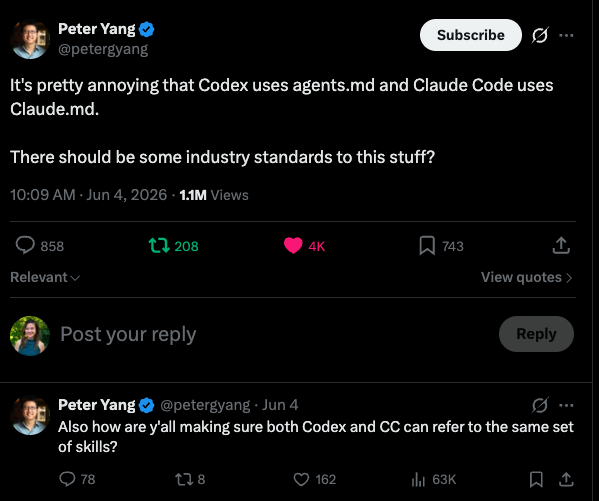
If you use more than one tool, you end up maintaining three or four versions of yourself. Or worse, you stay locked into one platform because switching means rewriting your entire setup from scratch.
The fix is portable instructions. You write your context one time. Every tool reads from the same source of truth. The trick is a symlink (a shortcut that makes two filenames point to the same file on disk). My engineer husband Nick showed me this the other day and my jaw actually dropped.
The basics
Step 1: Pick one master file
Choose a single file to own your AI context. I recommend AGENTS.md. Roughly 60,000 GitHub projects already use that name, and more tools are adopting it as a standard. Put everything in there: who you are, how you write, what your business does, what good output looks like for you.
If you already have a solid CLAUDE.md, you can flip this. Make CLAUDE.md the master and symlink everything else to it. The point is one source of truth, not which name wins.
Step 2: Write your context once
Open that master file and fill it in. Don't overthink the format. Short sections work fine: About Me, How I Write, Current Projects, Things to Never Do. If you're starting from scratch, my guide on setting up CLAUDE.md walks you through what to put in there. You edit it once. That becomes the brain every tool inherits.
Key insight: You're not writing instructions for one app. You're writing a portable profile that any AI can load before you type a single prompt.
Step 3: Open your project folder in Terminal
On Mac, right-click your project folder in Finder and choose New Terminal at Folder. On Windows, open the folder in File Explorer and type cmd in the address bar. You need to be inside the folder where your AI tools look for context files.
Step 4: Create the symlink
Run this command, swapping in your actual paths:
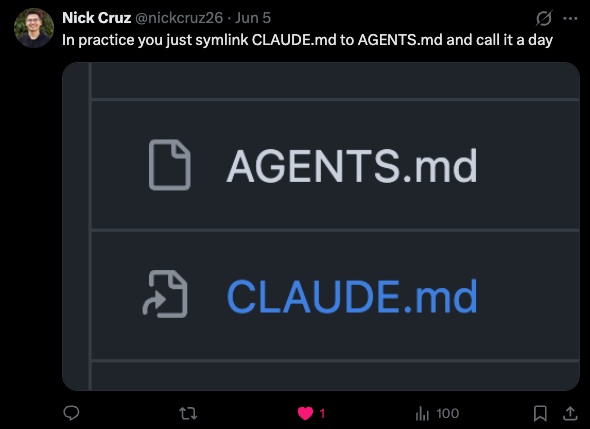
ln -s /path/to/original /path/to/symlinkIf your master file is AGENTS.md and you want Claude Code to read it, run:
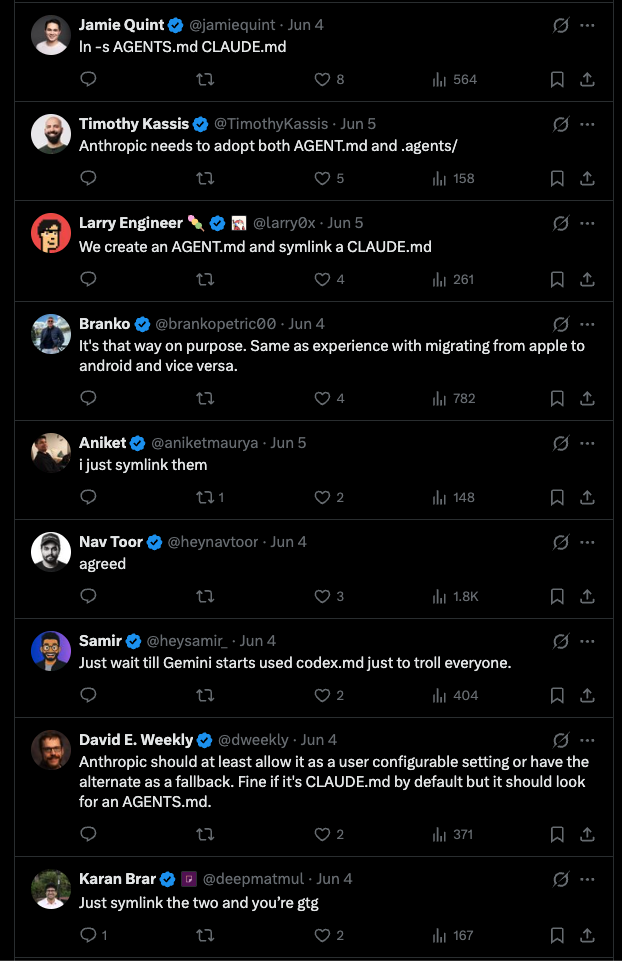
ln -s AGENTS.md CLAUDE.mdTwo seconds. Now CLAUDE.md is not a separate file. It's a pointer to AGENTS.md. Edit one, and both names see the change.
Step 5: Repeat for every tool you use
Same move for each tool that expects its own filename. Cursor might want .cursorrules or a rules file in .cursor/. Codex already reads AGENTS.md directly, so you may not need a symlink there at all. The pattern is always the same: one real file, symlinks everywhere else.
Step 6: Verify it worked
Open both filenames in your editor. They should show identical content. Edit a line in AGENTS.md, save, and check CLAUDE.md. If the change shows up in both places, you're done. One file. Every tool. Zero duplication.
What you get
- One source of truth. Update your voice, projects, or preferences in one place.
- Zero platform lock-in. Switch tools without rebuilding your setup.
- Consistent AI behavior. Claude, Codex, and Cursor all start from the same brain.
The people who feel "AI-native" aren't typing better prompts on day one. They set up systems once and let every tool inherit them.
Additional Reading
Here are some related guides to check out:
Frequently asked questions
- How do I use the same AI context file across ChatGPT, Claude, and Cursor?
- Symlink them. Codex reads AGENTS.md, Claude Code reads CLAUDE.md, and Cursor has its own, but none read each other, so you pick one master file and create symlinks (shortcuts that make two filenames point to the same file on disk) for the rest. Edit the master once and every tool sees the change. You stop maintaining three or four versions of yourself.
- What is a symlink and how do I create one for my AI files?
- A symlink is a shortcut that makes two filenames point to the same underlying file, so editing one updates both. Open your project folder in Terminal and run "ln -s AGENTS.md CLAUDE.md". Now CLAUDE.md is just a pointer to AGENTS.md, not a separate file. Verify by editing one and checking the change shows in both.
- Which file should be my master AI context file?
- AGENTS.md is a good default. Around 60,000 GitHub projects already use that name and more tools are adopting it as a standard. But if you already have a solid CLAUDE.md, flip it and make that the master. The point is one source of truth, not which name wins; symlink everything else to whichever you pick.
Want to build your first AI agent?
Build Your First Agent 101 is the next step! You'll get step by step guides, video tutorials and starter prompts to create your first agent in half a day, customized to your own workflow.
Learn more