How to Use Claude's Effort Levels

Co-founder at King’s Cross Labs · ex-LinkedIn PM & Forbes 30 Under 30
Send this guide to yourself
Get the link in your inbox so you can read it whenever you're ready.
Your email will also be saved for future updates.
Opus 4.8 launched and the benchmarks looked great. You switch to it, paste in a hard question, and get something that feels fine. Not bad. Not great. Then Reddit tells a different story: people getting noticeably better results on the same model, just with a different effort level dialed in.
That's the thread I pulled when I read through Reddit's take on Opus 4.8. The model number matters less than most launch posts suggest. What Redditors kept coming back to: if you've only tried Opus 4.8 on the default setting, you haven't really tried Opus 4.8. Bump effort to High or Max on something you care about and compare.
You're probably not doing anything wrong. You might just be on the wrong effort level, a control Anthropic added next to the model selector that changes how hard Claude thinks before it answers. Most people never touch it.
Why this matters
Effort levels are on all plans, in claude.ai, Cowork, Claude Code, and the API. They shape thinking depth, how eagerly Claude reads files or runs commands, response length, and how autonomously it pushes through multi-step work.
Effort is a behavioral signal, not a strict token budget. Even at Low, Claude still thinks on genuinely hard problems, just less. Your default also depends on model and plan. Opus 4.8 defaults to High. Opus 4.7 defaults to xHigh on every plan. Opus 4.6 and Sonnet 4.6 default to High on Team and Enterprise, but Medium on Pro and Max. A lot of people are running lower than they realize.
Key insight: Good context often beats a higher effort level. Low with clear files and a tight prompt can outperform Max with a vague ask and a messy folder.
The effort levels, explained
1. Low
Low effort is Claude with minimal extended thinking, close to the model's baseline response behavior. You still get the underlying model quality, but without much of a reasoning loop before the answer.
Best for:
- Simple factual lookups
- Short-form content (subject lines, quick summaries)
- Classification tasks (categorizing input, labeling sentiment)
- Conversational replies where you need a fast, direct answer
- Anything where speed beats depth
At Low, Claude responds faster and uses fewer tokens. I use it for high-volume stuff where most inputs are straightforward and a small error rate is fine.
2. Medium
Medium gives Claude a moderate thinking budget. Enough to reason through a problem with a few moving parts, but not the full cost of deep analysis.
Best for:
- Drafting emails or documents that need some structure
- Questions that take a couple of reasoning steps
- Summarizing moderately complex content
- Generating lists or plans with light dependencies
- Tasks where a reflexive answer would miss nuance, but you don't need an exhaustive one
If you're on Pro or Max with Opus 4.6 or Sonnet 4.6, this is your default. Worth checking if responses have felt lighter than you expected.
3. High
High allocates a significantly larger thinking budget. Claude reasons more carefully, considers alternatives, and checks its own logic before responding. You notice the difference on problems with multiple constraints, ambiguous inputs, or where subtle errors would matter.
Best for:
- Complex content (long-form writing, structured reports)
- Multi-step planning with dependencies
- Analyzing documents where nuance matters
- Customer-facing outputs that need higher accuracy
- Workflows where a wrong answer would need manual cleanup
The latency bump is noticeable but usually acceptable. For a proposal, a compliance summary, or a recommendation going to a client, the tradeoff is worth it. Opus 4.8 defaults here.
4. Extra high (xHigh)
Extra high (labeled Extra high in claude.ai, xHigh in Claude Code and the API) sits above High. More thorough reasoning, more willingness to explore files and run commands, more persistence across sessions.
Best for:
- Advanced coding and multi-file refactors
- Complex agentic workflows that need extended search or tool calling
- Sessions where you want Claude to keep moving without as much hand-holding
Opus 4.7 defaults to Extra high on every plan. In Claude Code, type /effort to cycle through levels.
5. Max
Max gives Claude the largest standard thinking budget in the web UI. Deploy it for genuinely hard problems where a wrong answer is expensive.
Best for:
- Complex research synthesis across multiple inputs
- Technical problem solving with many constraints
- High-stakes decision support (evaluating contracts, risk analysis)
- Scientific or mathematical reasoning
- Problems where you'd want a senior expert to think carefully before answering
Responses take longer and cost more. Anthropic notes that Max can show diminishing returns and is prone to overthinking on some tasks. Don't leave it on by default.
6. Ultra Code
Ultra Code is a specialized effort level tuned for software engineering. It uses an extended thinking budget similar to Max, but optimized for code generation, debugging, and technical reasoning patterns. Available in Claude Code CLI (not in the claude.ai effort menu above).
Best for:
- Writing complex code from scratch (especially multi-file, multi-component)
- Debugging gnarly issues where the root cause isn't obvious
- Code review with security or performance considerations
- Refactoring large codebases
- Architectural planning and system design
This isn't just Max with a different name. Ultra Code adjusts how Claude applies its reasoning to prioritize technical correctness, edge case handling, and code structure. On non-trivial software projects, the quality gap vs. High or Max on code tasks is real.
| Level | Where | Speed / cost | Best for (short) |
|---|---|---|---|
| Low | claude.ai, Code, API | Fastest, lowest token use | Lookups, labels, quick replies |
| Medium | claude.ai, Code, API | Balanced | Everyday writing, light planning |
| High | claude.ai, Code, API | Slower, more tokens | Nuanced analysis, client-facing work |
| Extra high (xHigh) | claude.ai, Code, API | Slower than High | Coding, refactors, agentic workflows |
| Max | claude.ai, Code, API | Slowest standard level | High-stakes, multi-constraint problems |
| Ultra Code | Claude Code CLI only | Similar to Max, code-tuned | Complex code, debug, architecture |
Matching effort to task type
The right level isn't about cranking to the highest setting you can afford. It's about matching reasoning depth to task complexity.
1. Use Low when
- The task has a single clear correct answer
- Speed is the top priority
- You're handling high volume and a small error rate is acceptable
- The output is an intermediate step, like classifying inputs before a later step handles edge cases
2. Use Medium when
- The task needs a few steps of reasoning but isn't ambiguous
- You want good quality without significant latency
- You're building conversational flows where response time matters
3. Use High when
- The output goes to an end user or customer
- The task has multiple parts or requirements
- Errors in the output would require manual correction
4. Use Extra high when
- You're doing advanced coding or multi-file refactors
- The workflow needs extended tool use or search
- You want more autonomous persistence than High gives you
5. Use Max when
- The task is genuinely complex and errors are costly
- You're working with long-context inputs that need careful synthesis
- You'd want a human expert to reason carefully before answering
6. Use Ultra Code when
- The primary output is code
- You're debugging or reviewing existing code
- You need architectural guidance or complex implementation
A common mistake: defaulting to Max or Ultra Code for everything because the output feels more polished. On a simple task, the quality gap between High and Max is negligible. The cost and latency gap is not.
How to change effort level
1. Find the effort dial in claude.ai
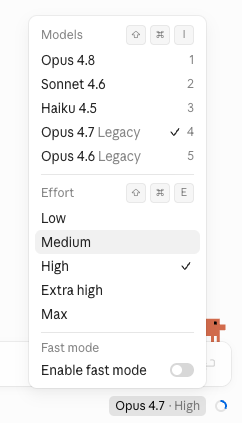
Open the model menu (click the model name at the bottom of the chat). Under Models, pick your model. Under Effort, pick Low through Max. Keyboard shortcut: Shift + ⌘ + E. The status pill at the bottom shows your current combo (e.g., "Opus 4.7 · High").
2. Use /effort in Claude Code
In Claude Code or the VS Code extension, type /effort in the prompt box to cycle through options. Type /effort auto to let Claude pick dynamically based on task difficulty. This is what I use when I'm mid-session and realize a task needs more or less brainpower than I started with.
3. Set effort in the API
If you're building something or using Claude through code, add the effort parameter to your API call (e.g., "effort": "xhigh"). That overrides the system default for that request.
What effort actually changes
Effort controls adaptive reasoning. Claude decides whether and how much to think on each step based on task complexity, and the setting shifts the ceiling and bias. It affects four things at once:
1. Thinking depth
Higher effort raises the ceiling on internal reasoning. More effort means more thinking on average.
2. Tool call appetite
At Low, Claude reads the minimum files and runs the minimum commands. At High and above, it proactively explores: opening related files, running tests, searching the codebase before acting. Agentic sessions feel dramatically different at different effort levels.
3. Response length
Higher effort produces longer, more detailed responses. Getting walls of text when you wanted a one-liner? Drop the effort. Getting one-liners when you needed a plan? Bump it up.
4. Agentic persistence
At Low, Claude pauses and asks for clarification more often. At Medium and above, it plans ahead and keeps moving autonomously through multi-step work. Same model, same prompt, very different session feel.
Additional Reading
Here are some related guides to check out:
Frequently asked questions
- What are Claude's effort levels?
- Effort levels are a dial next to the model selector that controls how hard Claude thinks before answering: Low, Medium, High, Extra high (xHigh), and Max, plus a code-tuned Ultra Code in Claude Code. Higher effort means deeper reasoning, more willingness to read files and run commands, longer responses, and more autonomous persistence. They work on all plans across claude.ai, Cowork, Claude Code, and the API.
- Which Claude effort level should I use?
- Match the level to the task, not just crank it up: Low for lookups, labels, and quick replies; Medium for everyday writing and light planning; High for nuanced analysis and client-facing work; Extra high for coding and agentic workflows; and Max for high-stakes, multi-constraint problems. Defaulting to Max for everything wastes time and money, since on a simple task the quality gap over High is negligible but the latency isn't.
- How do I change Claude's effort level?
- In claude.ai, open the model menu at the bottom of the chat and pick a level under Effort (shortcut Shift+Cmd+E). In Claude Code, type /effort to cycle through options, or /effort auto to let Claude pick based on difficulty. In the API, add the effort parameter to your call.
- Does a higher effort level always give better answers?
- No, good context often beats a higher effort level. Low with clear context files and a tight prompt can outperform Max with a vague ask and a messy folder, and Anthropic notes Max can overthink and show diminishing returns on some tasks. Bump effort when a task genuinely needs more reasoning, but fix your prompt and context first.
Want to build your first AI agent?
Build Your First Agent 101 is the next step! You'll get step by step guides, video tutorials and starter prompts to create your first agent in half a day, customized to your own workflow.
Learn more