How to Organize Your Messy Desktop & Folders with AI

Co-founder at King’s Cross Labs · ex-LinkedIn PM & Forbes 30 Under 30
Send this guide to yourself
Get the link in your inbox so you can read it whenever you're ready.
Your email will also be saved for future updates.
You can organize a messy Desktop or Downloads folder with Claude Cowork or Claude Code in under five minutes. Claude scans what's there, proposes a folder plan, and then actually moves the files on your computer once you say go.
Looking at my Downloads folder used to give me real anxiety. Hundreds of screenshots, PDFs, videos, and mystery files piled on top of each other with zero structure. Claude cleaned the whole thing while I watched: it made 11 folders and sorted everything into them. Doing it by hand would have taken hours.
I'm a creator with a bajillion content files, and this was my first real AHA moment with Claude Cowork (and Claude Code). That's the difference between chat AI and agentic AI: one gives you advice, the other moves the files.
How do you organize a messy folder with Claude?
Open Claude Cowork or Claude Code, point it at one local folder (Desktop, Downloads, or anywhere else), paste an organize prompt, review the plan, then say GO. Claude executes the cleanup on your machine.
You can run this on Downloads, Desktop, or any local folder. Same workflow.
The setup
1. Open Claude Cowork (or Claude Code)
I used Claude Cowork. Claude Code works the same way if you prefer working from the terminal. If you have not finished basic Claude setup yet, start with my 10-minute Claude setup guide so Cowork can see your files.
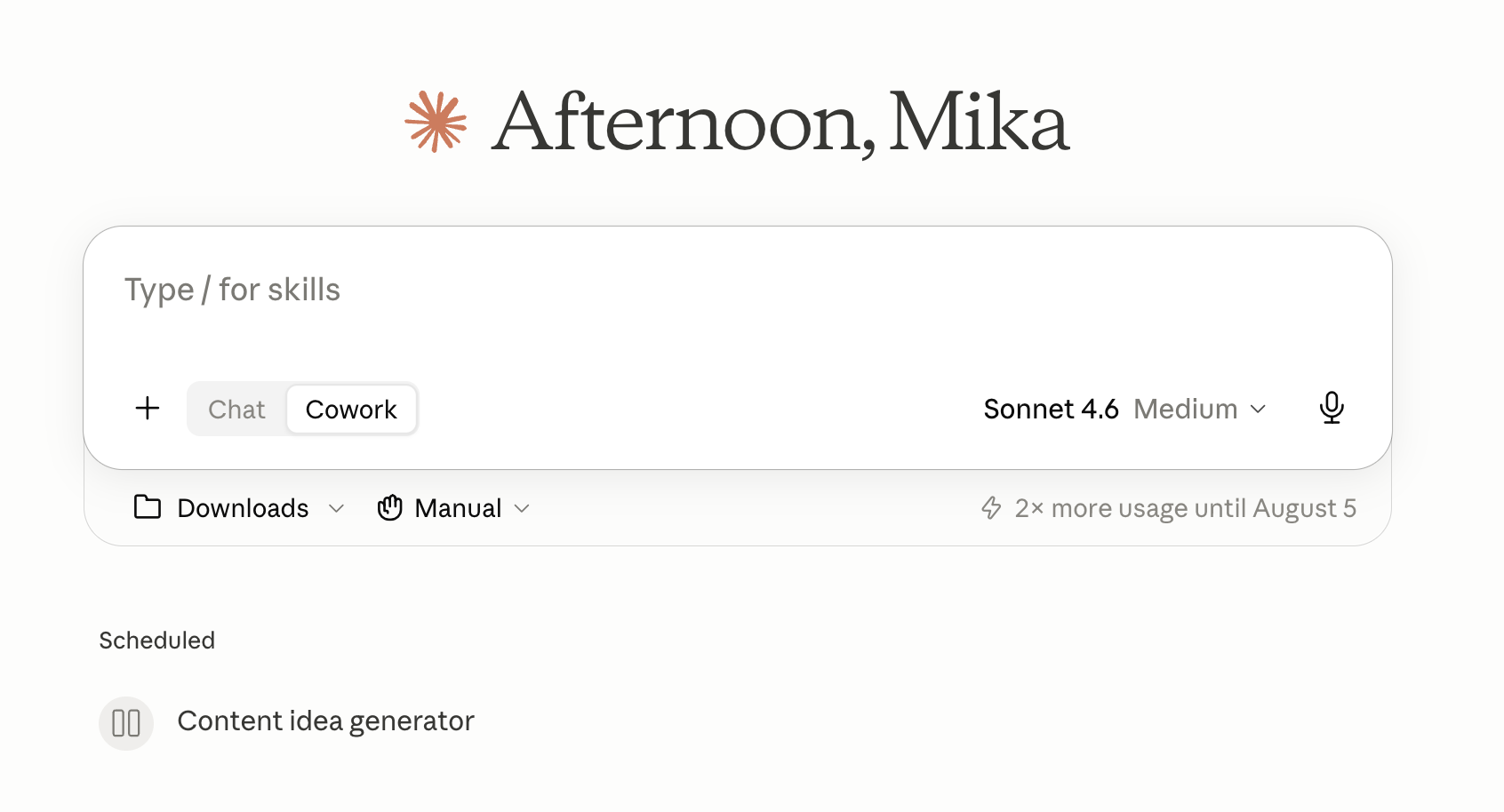
2. Point Claude at the messy folder
In Cowork, choose the project folder you want cleaned (mine was Downloads). In Claude Code, open that same folder as the working directory. Do not give it your whole hard drive. One chaotic folder at a time is safer and faster.
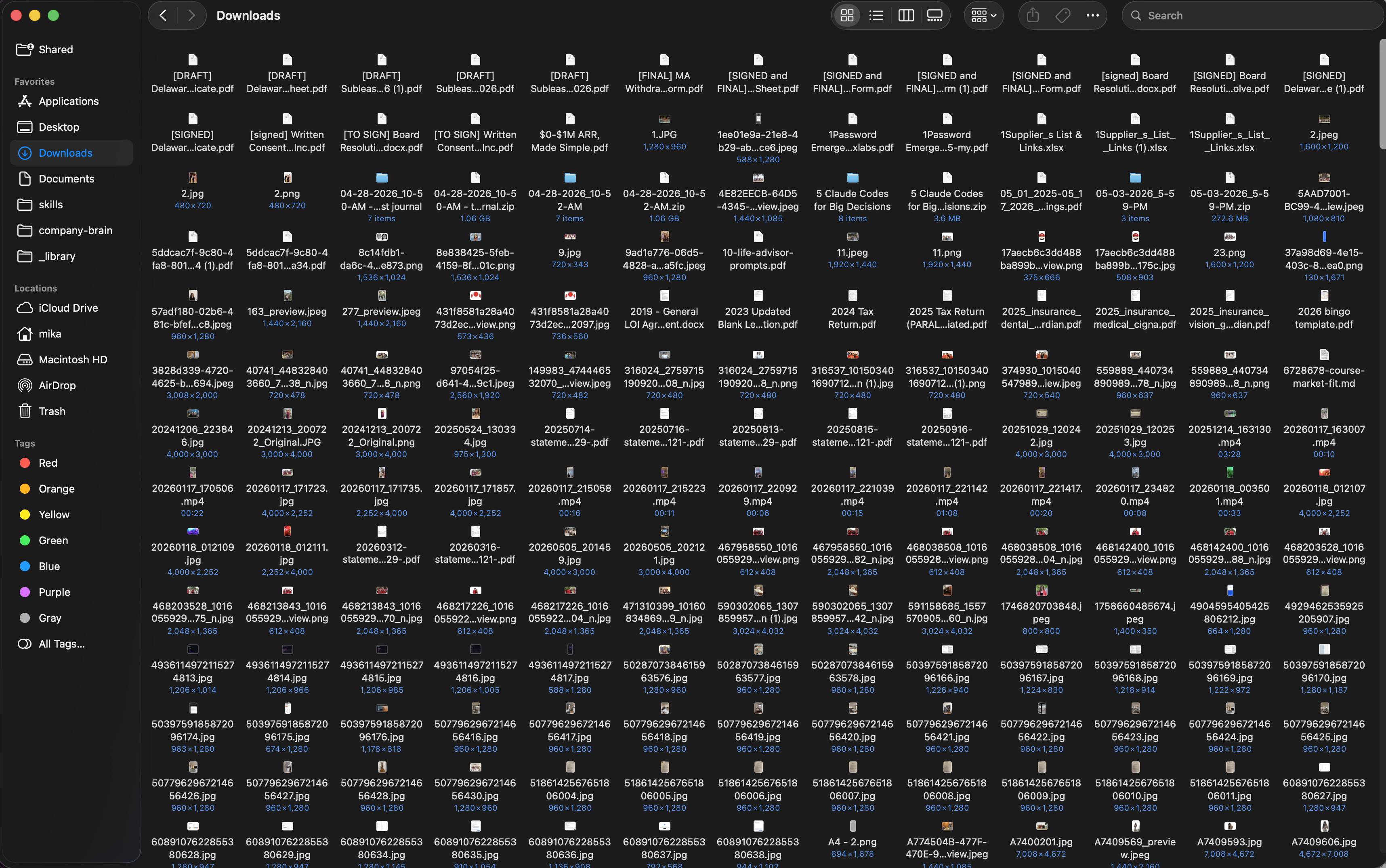
The cleanup
3. Paste a clear organize prompt
Tell Claude what organized means for you, including any hard rules (keep vs. trash) and room for it to invent categories based on what it finds. Here is the refined version of the prompt I used:
I need help cleaning up this folder. It's a big mess and looking at it gives me anxiety.

Please:
1. Scan everything in this folder (do not go into nested folders unless I say so).
2. Propose a simple folder structure I can live with long-term. Prefer clear names like:
   - important files
   - photos & videos
   - screenshots
   - screen recordings
   - creative assets
   - installers
   - [project or brand names you can clearly identify]
   - a catch-all for anything leftover
3. Move files into those folders. Do not rename files unless a name is useless or unsafe.
4. For zip files, installers, duplicates, and obvious junk: list what you'd delete and wait for my OK. Do not delete anything until I say "GO".
5. Before you move anything, show me a short plan: folder names, roughly how many files per folder, and anything you're unsure about.

Then wait for my confirmation.
You can swap in Desktop, Downloads, or any other local path. Add your own non-negotiables (tax docs stay, keep signed PDFs, never touch wedding files, etc.).
4. Review Claude's plan, then say GO
Claude should come back with a proposed structure and the fuzzy edge cases. This is the part most people skip. Skim for two minutes. If a category feels wrong, correct it before anything moves. Then say GO.
Key insight: The magic is not that Claude invents folders. It is that Claude can execute the cleanup on your machine. You are not copying advice into Finder by hand.
5. Let it run, then spot-check the folders
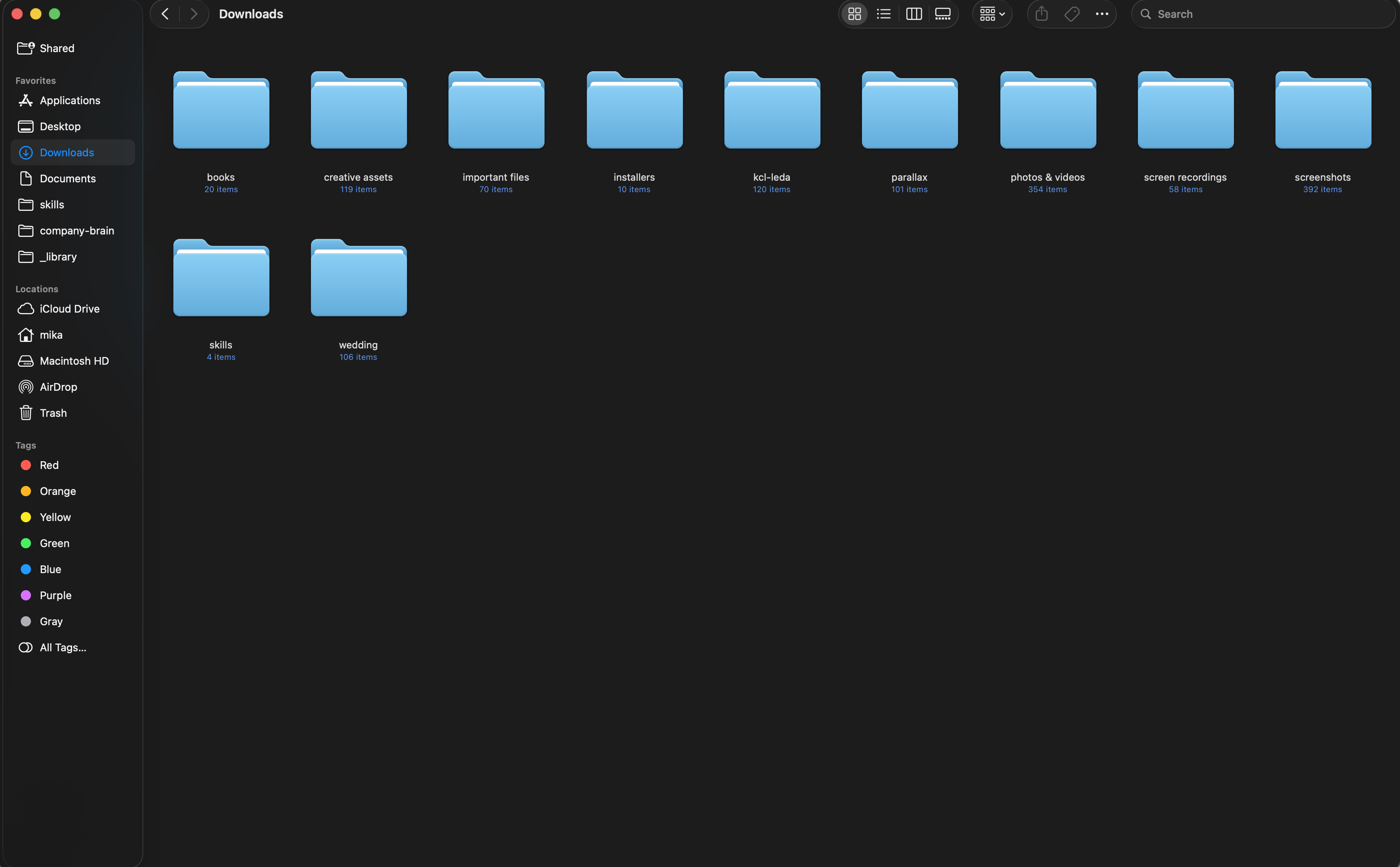
In my run, Claude created 11 folders and filed everything into them. Mine looked roughly like: important files, photos and videos, screenshots, screen recordings, creative assets, installers, books, skills, plus a few project folders (wedding, client or brand names) and a catch-all.
Your list will differ. That is the point. Claude should build categories from your files, not mine.
6. Save the prompt as a reusable habit
Next time the pile returns (and it will), you do not reinvent this. Paste the same prompt, or turn it into a skill so clean my Downloads is one sentence. If you want Claude to remember your preferences across sessions, give it lasting memory first. For a deeper terminal setup, see how to set up Claude Code.
Additional Reading
Here are some related guides to check out:
Frequently asked questions
- Can I do this without Claude Cowork?
- Yes. Claude Code can do the same kind of local file cleanup if you open the folder as the project. Chat-only Claude can suggest a folder plan, but it cannot move the files for you unless something on your computer is actually executing those moves.
- Is it safe to let Claude delete files?
- Not on the first pass. Have it propose deletions for zip files, duplicates, installers, and obvious junk, then approve them yourself. Moving files into folders is low risk. Permanent delete should always wait for a clear GO from you.
- What if my Desktop and Downloads are both a mess?
- Clean one folder at a time. Start with the one that stresses you most. Once you trust the workflow, run it on the next folder with the same prompt.
- Do I need to be technical for this?
- No. If you can open Cowork, select a folder, and paste a prompt, you can do this. Under the hood Claude is running code to move files, but you never have to write that code yourself.
Want to build your first AI agent?
Build Your First Agent 101 is the next step! You'll get step by step guides, video tutorials and starter prompts to create your first agent in half a day, customized to your own workflow.
Learn more