How to Convert PDFs to Markdown for AI

Co-founder at King’s Cross Labs · ex-LinkedIn PM & Forbes 30 Under 30
Send this guide to yourself
Get the link in your inbox so you can read it whenever you're ready.
Your email will also be saved for future updates.
Stop uploading PDFs to Claude. Convert the file to markdown first, then upload that instead, and the same document costs you a fraction of the tokens. Markdown is just plain text with a few formatting marks, saved as a .md file, and it is the cheapest format an AI can read.
Two ways to do the conversion:
- In your browser, in about 60 seconds, with nothing to install. The file it hands you works just as well in ChatGPT or anywhere else you paste it.
- Inside Claude, using a tool Microsoft open-sourced. Set this one up if you convert files every week.
Why does uploading a PDF to Claude cost so much?
Because you get charged twice for the same page. Anthropic's own PDF documentation spells out the process:
- The system turns each page of the document into an image.
- It also pulls the text off that same page.
- It sends both to Claude together, so you pay image tokens for the picture and text tokens for the words.
What that costs you:
- Anthropic estimates 1,500 to 3,000 text tokens per page, depending on how dense the page is.
- The image cost sits on top of that.
- A 20-page report can eat 40,000 to 60,000 tokens before Claude answers a single question.
That is a big chunk of your window gone, and it is why file uploads are the first thing I cut in how to stop hitting Claude usage limits.
Key insight: A PDF makes Claude pay for a picture of your words and for the words themselves. Markdown is only the words.
How do you convert a PDF to markdown?
Pick based on how often you do this. If it is a one-off, use the browser. If you are converting files every week, set up the tool once and call it from inside Claude.
The 60-second fix: CloudConvert
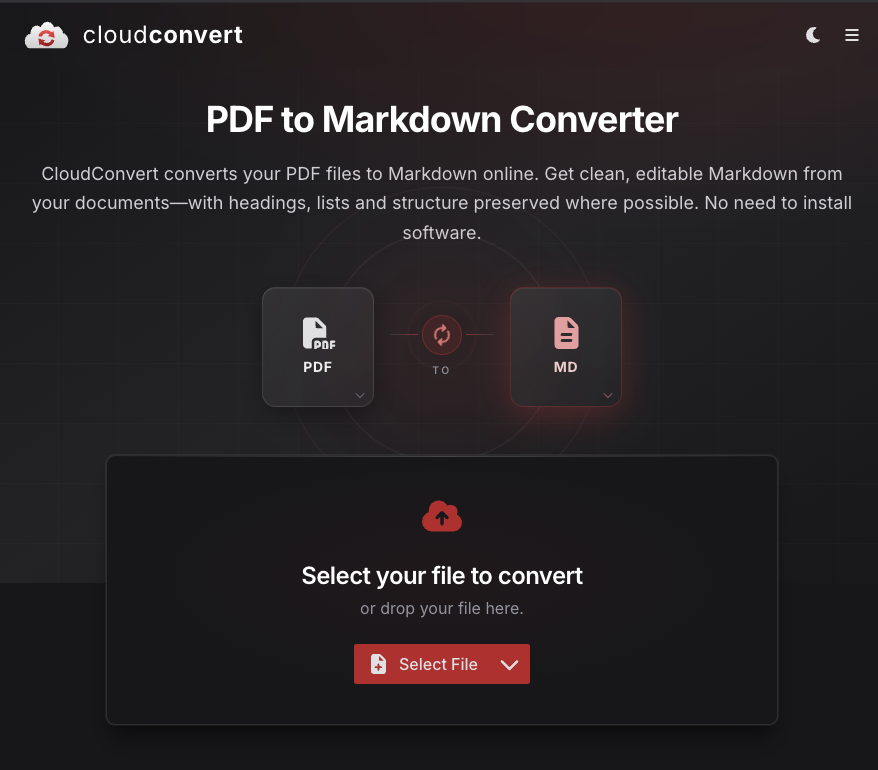
1. Open the PDF to Markdown converter.
- Go to cloudconvert.com/pdf-to-md.
- The page does one thing. PDF on the left, MD on the right.
- Nothing to configure.
2. Drop in your PDF.
- Click Select File, or drag the file onto the page.
- The free tier gives you 10 conversion credits a day, no card required.
- The 1 GB size limit covers almost anything a normal person uploads to Claude.
3. Download the .md file.
- You get a plain text file back, with headings, lists and structure preserved where the original had them.
- Open it and skim it before you use it. Ten seconds.
4. Upload the .md to Claude instead of the PDF.
- Same document, same information, without the per-page image.
- If the file is short, skip the upload and paste the text straight into the chat.
5. If you do this constantly, use their API.
- CloudConvert exposes the same conversion as an API endpoint.
- You or Claude Code can wire it into a script and convert a folder of files without touching the website.
- This only pays off at volume, so do not build the automation until you have felt the manual version get annoying.
The repeatable fix: MarkItDown from Microsoft
6. Know what MarkItDown actually is.
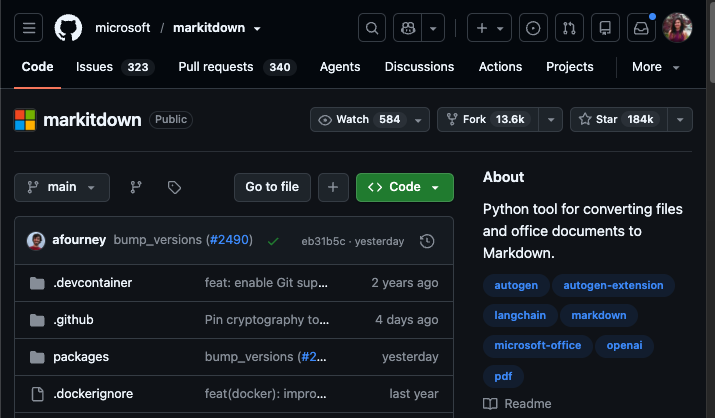
- A free, open-source tool from Microsoft that converts PDFs, Word docs, PowerPoint decks, Excel sheets, HTML and more into markdown.
- It was built so the output feeds cleanly into an AI, not so it looks pretty for a human.
- The repo sits at github.com/microsoft/markitdown.
7. Install it the way that matches your setup. Three routes, easiest first. If you use Claude Code, a community-built skill wraps MarkItDown and installs the tool for you in one line:
curl -fsSL https://raw.githubusercontent.com/yitianlian/markitdown-skill/main/install.sh | bashIf you would rather run it yourself, install the tool directly with Python:
pip install 'markitdown[all]'Third route: Microsoft's official MCP server, markitdown-mcp, plugs MarkItDown into Claude Desktop. I would skip it unless you specifically want it, because MCP servers load their full definition into your context on every call, which is the kind of quiet tax covered in the Claude Code habits that keep sessions lean.
8. Convert the file. With the skill installed, you type a slash command in Claude Code and it handles the rest:
/markitdown report.pdf
/markitdown slides.pptx -o slides.md
/markitdown ./documents/
With the plain tool, it is one line in your terminal: markitdown report.pdf -o report.md. Either way you can point it at a whole folder and convert everything at once, which is the real reason to set this up.
9. Check the output before you trust it. Microsoft is upfront that MarkItDown is built for text analysis and is not the best option for high-fidelity conversion.
- Tables usually survive.
- Complex layouts and multi-column pages sometimes scramble.
- A scanned PDF, meaning a photo of a page rather than real text, needs the separate OCR plugin or it comes back close to empty.
Skim the markdown once and you will know immediately.
When should you still upload the PDF?
When the document is visual! Markdown throws away images, so send the PDF for:
- A pitch deck where the chart carries the argument.
- A scanned contract with signatures.
- A design spec, or anything where the layout is the meaning.
That is exactly what Claude's image processing is for, and in those cases you are paying for something you actually need.
Additional Reading
Here are some related guides to check out:
- How to Stop Hitting Claude Usage Limits (part 1)
- How to Stop Hitting Claude Usage Limits (part 3)
- What is a Skill?
- How to Create a Custom Skill
- How to Give Claude Memory
Frequently asked questions
- Why does uploading a PDF to Claude use so many tokens?
- Because Claude processes every page twice. Anthropic's documentation says the system converts each page into an image and also extracts the text, then analyzes both together, so you pay image tokens and text tokens for the same page. Text alone runs about 1,500 to 3,000 tokens per page, with the image cost on top.
- How do I convert a PDF to markdown without installing anything?
- Use CloudConvert. Go to cloudconvert.com/pdf-to-md, drop in your PDF, and download the .md file, then upload that to Claude instead of the original. The free tier gives you 10 conversions a day with no card required.
- Does this work with ChatGPT, or only Claude?
- The conversion works anywhere. CloudConvert runs in your browser and hands you a .md file you can upload to ChatGPT, Gemini, or any assistant that takes file attachments, and it will cost fewer tokens there for the same reason it does in Claude. The part that is Claude-only is the slash-command skill, because skills are a Claude Code feature.
- Should I ever upload the PDF instead of converting it?
- Yes, when the visuals are the point. Charts, diagrams, scanned documents, signatures and anything where the layout carries meaning should stay as a PDF, because markdown is text only and drops all of that. A good test is whether you could read the document out loud and lose nothing.
Want to build your first AI agent?
Build Your First Agent 101 is the next step! You'll get step by step guides, video tutorials and starter prompts to create your first agent in half a day, customized to your own workflow.
Learn more