How to Turn Anything into a Personal Podcast with AI

Co-founder at King’s Cross Labs · ex-LinkedIn PM & Forbes 30 Under 30
Send this guide to yourself
Get the link in your inbox so you can read it whenever you're ready.
Your email will also be saved for future updates.
If your newsletter inbox is where good ideas go to die, turn the pile into a personal podcast you can play on the go. A Claude project rewrites each piece as a spoken script. Fish Audio turns that script into audio you hit play on from the Claude app.
I save a lot of AI guides and subscribe to more newsletters than I finish. Sitting down to read them is the part that never happens. I still pick what is worth keeping. AI does the reading.
This is the stack: Claude holds the rewrite rules, Fish Audio does text-to-speech, and the Claude app is the player. If Claude is still a blank chat box for you, do the 10-minute setup first. You don't need to be a developer.
Some links on this page are my personal referral links, including Fish Audio.
Key insight: I kept the save habit. The files just get read to me now.
How do you turn a saved file into a podcast?
Make a Claude project, paste instructions that write for the ear, connect Fish Audio, pick a voice, then ask Claude to turn this week's files into audio. It works for newsletters, PDFs, markdown, and saved guides.
Set up the Claude project
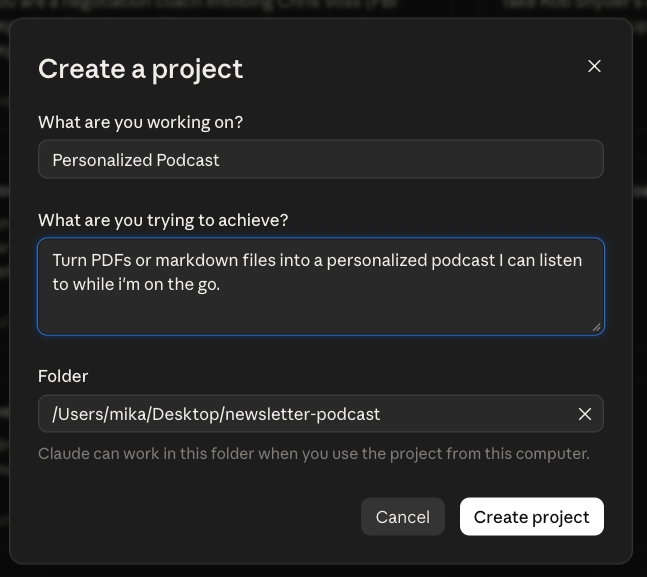
1. Create a project and name it Personalized Podcast.
In Claude, make a new project. I called mine Personalized Podcast. Under what you are trying to achieve, I wrote: turn PDFs or markdown files into a personalized podcast I can listen to while I'm on the go.
If you use Claude on the computer that already has your saved issues, point the project at that folder. Mine lives in a local newsletter-podcast folder, so Claude can read files from there when I run the project on this machine. A Claude project is a reusable box of instructions and files, so you are not re-explaining the job every week.
2. Paste project instructions that write for the ear, not the eye.
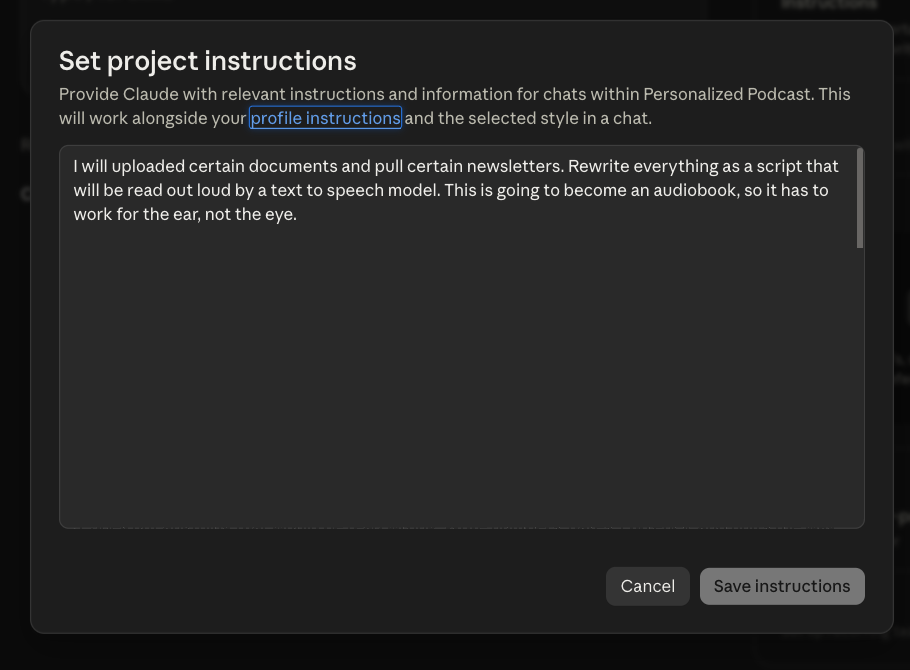
Open Set project instructions. Raw newsletters sound terrible out loud. Headings, bullets, URLs, and markdown all get read as junk. The tags at the bottom tell the Fish Audio voice how to perform each line.
Here is the instruction I use:
I drop in newsletters, PDFs, markdown files, and saved guides. Rewrite each one as a spoken script for a text-to-speech voice. I listen while I run, walk, or sit on a plane, so write for the ear, not the eye.

Do all of this:

1. Return plain narration only. No headings, titles, section numbers, markdown, asterisks, bullets, dash lists, or tables.
2. If the original used a heading, replace it with a short spoken bridge, like "Next, the part about pricing." Do not read a heading as a label.
3. If the original used a list, turn it into speech. "Three things matter here. First... Second... Third..." Do not read the symbols out loud.
4. Remove every URL, link, footnote, and citation number. If the source mattered, say the name out loud, like "according to their pricing page." Never spell a web address.
5. Write numbers, dates, money, and units the way a person would say them.
6. Add performance tags in square brackets. The voice acts them. It does not read the brackets aloud.

A tag changes everything that comes after it, so put it right in front of the words it should color. Tags work in 83+ languages, not only English.

Pair a physical cue with an emotion when you can:

[panting] [tired] I've been running...
[laughing] [excited] Hey! Stop tickling me!
[clears throat] [angry] How could you?!
[sighing] [emphasis] I just don't know.

You can also write an open phrase inside the brackets:

[the calm, measured tone of someone who has done this a thousand times]
[dead tired, end of a very long shift]
[voice rough from crying, trying to sound normal]

Use tags on jokes, warnings, asides, and pauses. Do not leave long stretches of flat narration.
Save the instructions. They sit next to your profile instructions, which is the same idea as global context. You say it once and reuse it every episode.
3. Ask for this week's script.
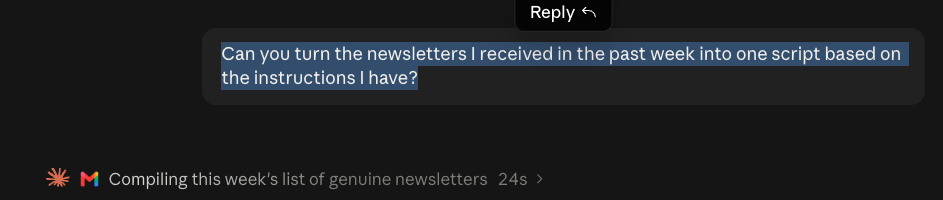
Drop in the issues you actually want, or point Claude at the files in the project folder. Then say:
Can you turn the newsletters I received in the past week into one script based on the instructions I have?
You still choose what is worth an episode. Claude compiles the list and writes one spoken script, with transitions instead of headers.
How do you connect Fish Audio to Claude?
An MCP is a plug so Claude can use another product. Same family of setup as connecting Meta Ads to Claude, only this one speaks.
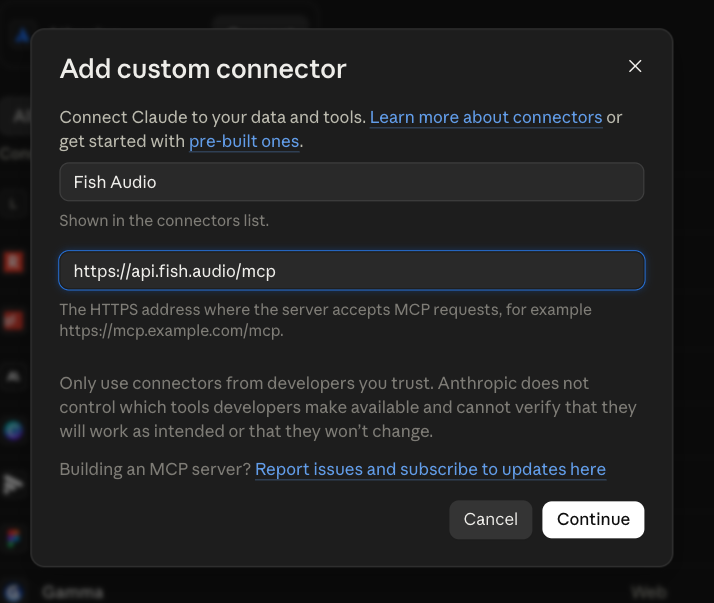
4. Add the Fish Audio connector.
Go to Settings → Connectors → Add custom connector. Name it Fish Audio. Paste:
https://api.fish.audio/mcpClick Continue, then sign in to Fish Audio when the browser window opens. Usage comes out of your Fish Audio plan credits, not a separate developer API balance. They have run a free window on S2.1 Pro. Check the site when you sign up, because that will not stay true forever.
5. Set tool permissions, then confirm it is live.
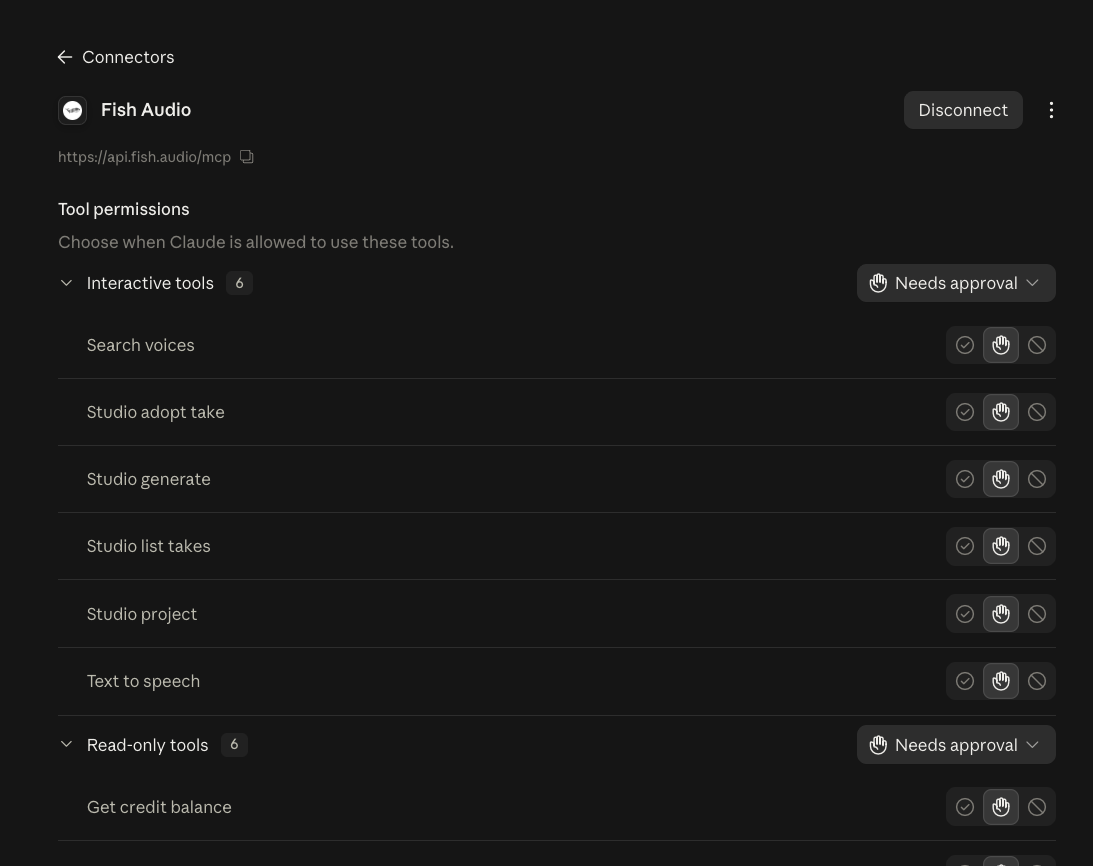
You will see tools like Search voices, Text to speech, Studio generate, and Get credit balance. I leave the write tools on Needs approval the first time, so Claude has to ask before it spends credits.
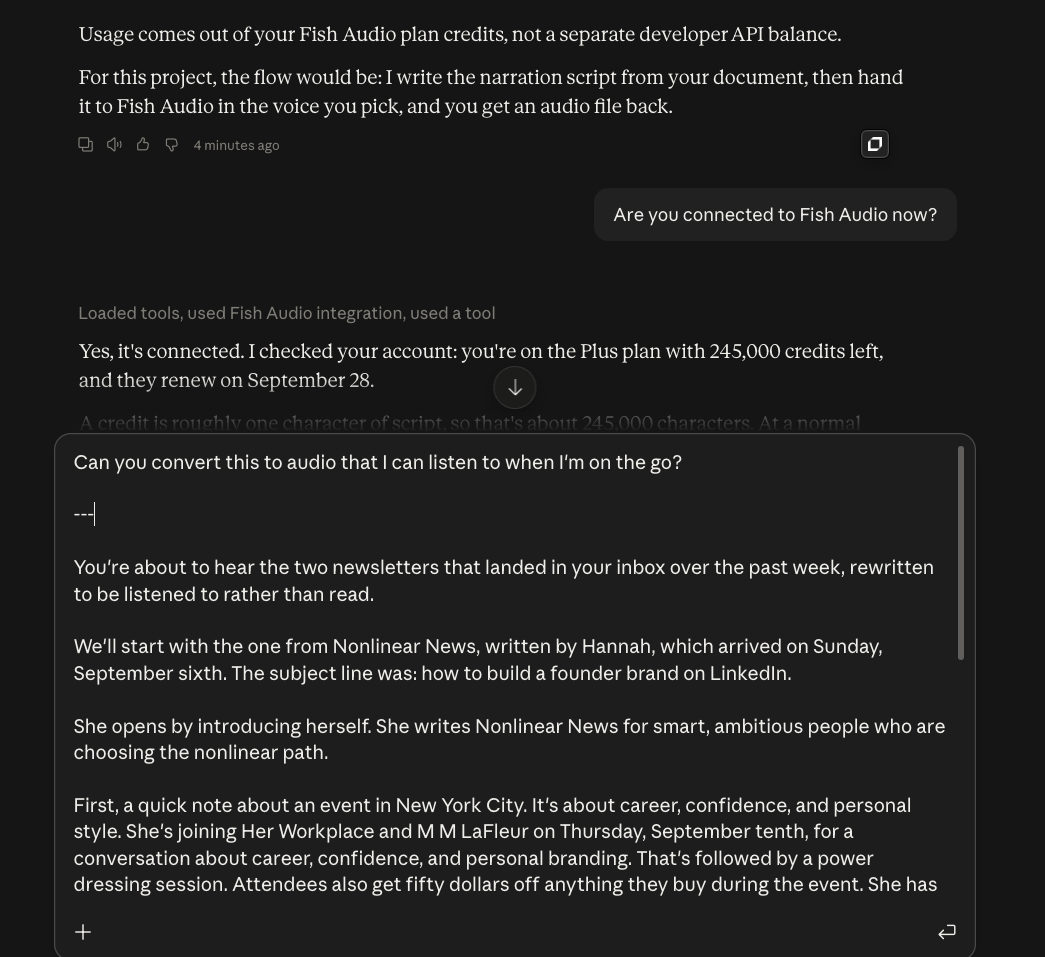
Then, in the project, ask Claude if it is connected to Fish Audio now. You want it to answer from the connector, not from a guess.
How do you pick a voice and actually listen?
6. Pick a voice. Hearing yourself is optional, and a little weird.
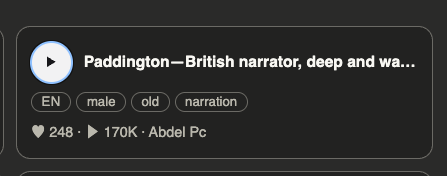
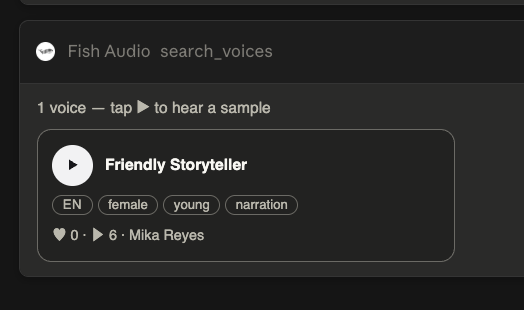
Claude will ask which voice to use. I cloned my own for an ads project. It is sitting there as Friendly Storyteller. I do not use it for this. A personal podcast of my unread inbox, in my own voice, felt off. I use a soothing British narrator instead. In the Fish Audio library it shows up as Paddington: English, male, narration.
If you want to browse, ask Claude to search voices. Tap the preview before you commit.
7. Convert the script, then play it from the Claude app.
Once you like the script, ask: "Can you convert this to audio that I can listen to when I'm on the go?"
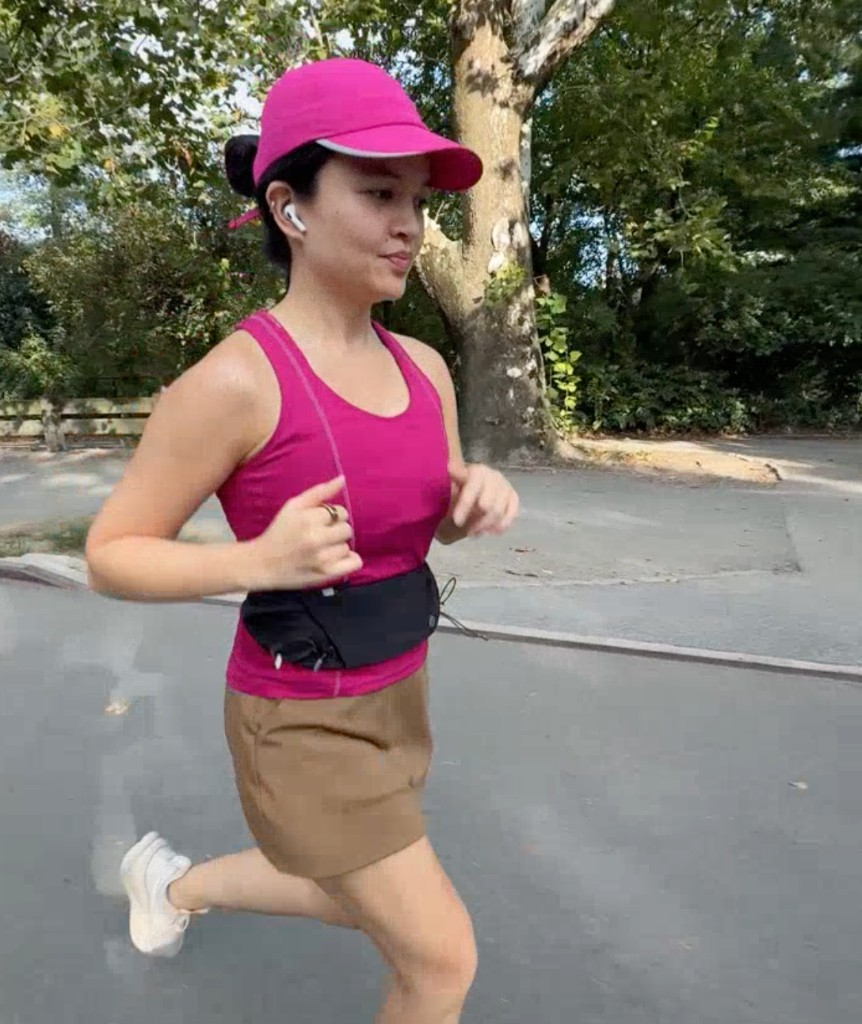
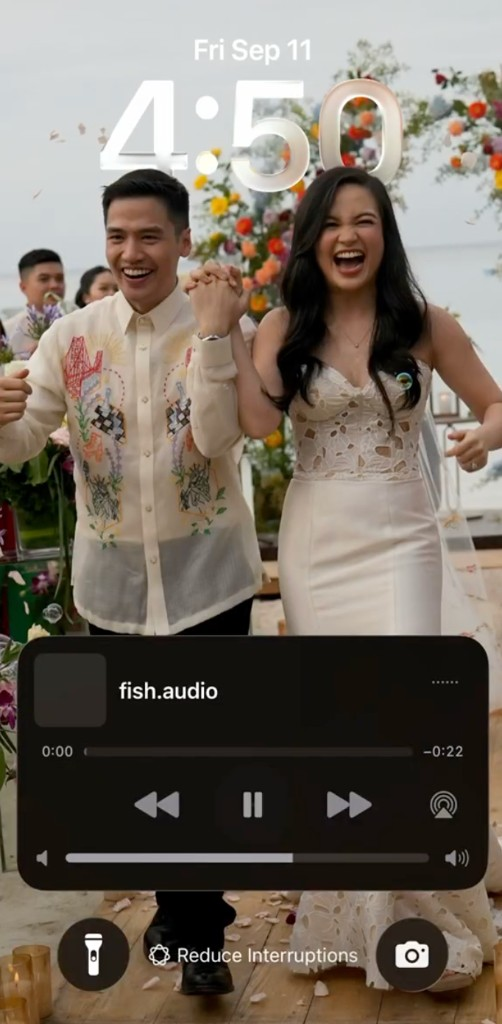
Claude hands the narration to Fish Audio in the voice you picked and gives you an audio file back. Play it from the Claude app whenever your hands are busy. I tested mine on an hour flight with no internet, and it still played. I also listen on runs. The file shows up on the lock screen like any other audio.
Here are some related guides to check out:
- How to Setup Claude (10 Minute Setup Guide)
- How to Give Claude Memory (Beginner to Advanced)
- How to Connect Meta Ads to Claude
- 7 New Creative Tools as Claude Connectors
- Claude Features Cheat Sheet for Power Users
This post is sponsored by Fish Audio. I only share products that I've actually used and vetted. In this case, I actually built this whole workflow out and am excited to share it more broadly. Thank you for supporting me and my channel!
Frequently asked questions
- Can I do this without cloning my voice?
- Yes. Cloning is optional. I cloned mine for ads and still picked a British narrator for this podcast, because hearing myself read my inbox felt weird. Search the Fish Audio library for a narration voice, preview it, and use that.
- How do I connect Fish Audio to Claude?
- In Claude, go to Settings, Connectors, Add custom connector. Name it Fish Audio, paste https://api.fish.audio/mcp, then sign in when the browser window opens. Ask Claude if it is connected before you generate a full episode, so you know the connector is live.
- Does this work on a plane without wifi?
- I played an episode on an hour flight with no internet and it worked. Generate the audio while you are online, then play the file from the Claude app once it is saved. Do not count on creating a new episode in the air.
- Do I need Claude Code, or is regular Claude enough?
- Regular Claude is enough. This is a project plus a connector, not a coding setup. Claude Code works too if that is already your habit, but you can run the whole loop from the Claude app.
Want to build your first AI agent?
Build Your First Agent 101 is the next step! You'll get step by step guides, video tutorials and starter prompts to create your first agent in half a day, customized to your own workflow.
Learn more