How to Make AI-Written Emails Sound Human

Co-founder at King’s Cross Labs · ex-LinkedIn PM & Forbes 30 Under 30
Send this guide to yourself
Get the link in your inbox so you can read it whenever you're ready.
Your email will also be saved for future updates.
Most AI-written emails give themselves away in the first line, before the reader even reaches the ask.
I write a lot of cold emails, client follow-ups and partnership pitches. AI gets me to a draft fast, and a fast draft is worth a lot. What it does not get me is a draft anyone believes I wrote.
Dropping AI is not the fix. That costs you the time savings, which is the whole reason you started. Two things fix it instead:
- Learn the six tells that give an email away.
- Run every draft through four editing skills before you send.
The whole pass takes under two minutes.
What gives away an email written by AI?
Six patterns show up in almost every AI-drafted email. Name them once and you can spot them in ten seconds.
- The "it's not X, it's Y" flip. "This isn't just a tool, it's a workflow." Sounds insightful, says very little.
- Em dashes everywhere. One is fine. Three in a five-sentence email is a signature.
- Polished business jargon. "Leverage," "streamline," "circle back," "align on next steps," "seamless." Nobody writes like this to one person.
- The rule of three. "Faster, cleaner, and more reliable." Three adjectives where a human would name one specific thing.
- Throat-clearing openers. "I hope this email finds you well." "Just wanted to reach out." Two sentences before the actual reason you are writing.
- Identical sentence rhythm. Every sentence the same length, every paragraph the same shape. Real email is lumpier.
Key insight: Readers rarely think "an AI wrote this." They think "this person did not actually write to me." That is what costs you the reply.
How do you fix an AI-written email before you send it?
Run the draft past the tell list, then through four editing skills in order. A skill is a saved set of instructions your AI runs on command, so you are not retyping the same editing brief every time. If that is new to you, start with what a skill actually is.
1. Do the tell check yourself first.
- Read the draft once, looking only for the six patterns above.
- Ten seconds. Most drafts have three or four of them in the first paragraph.
- Doing it by eye teaches you the patterns faster than any tool will.
2. Run the Humanizer pass.
- What it fixes: the structural tells. Inflated significance, fake-depth verbs like "highlighting" and "underscoring," the rule of three, em dash clusters.
- Install: download Humanizer SKILL.md, drop it in your skills folder, reload Claude. Or paste the file contents into Claude and ask it to create the skill for you.
- Full walkthrough: my Humanizer skill guide.
3. Run No AI Slop as a second, separate pass.
- What it fixes: the same tells, without flattening you. It protects your blunt lines, your jokes, your uncertainty, the specific numbers you put in.
- How to run it: after Humanizer, as its own pass. Keep them separate so you can see what each one changed.
- Install: paste this into Claude Code:
Install the no-ai-slop skill globally from https://github.com/petergyang/no-ai-slop. Repo: github.com/petergyang/no-ai-slop. - Full walkthrough: how to humanize AI text.
4. Review the draft like a Google Doc with Human Review.
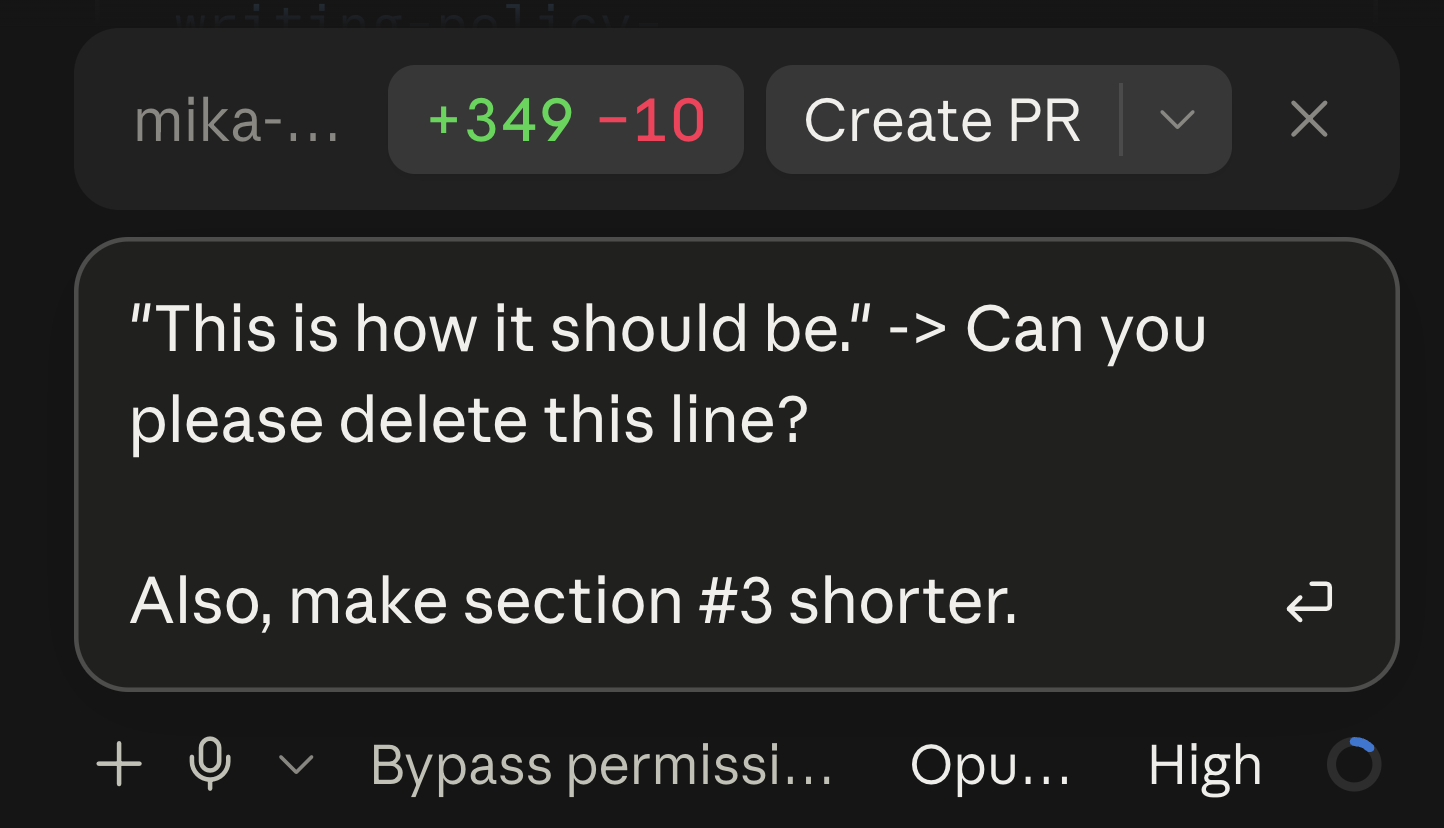
- What it fixes: the tone problems no editing skill catches. You know what you would never say out loud. Highlight the exact sentence, type "I would never say this," and that line gets fixed. Describe the same problem in chat and you are hoping the model finds the line you meant.
- Install: paste this into Claude Code or Codex:
Install the /human-review skill globally from https://github.com/petergyang/human-review. Or runnpx -y human-review setup --globalin your terminal. Repo: github.com/petergyang/human-review. - Full walkthrough: how to edit AI drafts like a Google Doc.
5. Use Content Research Writer when the email needs real substance.
- What it fixes: thin content. That is what sinks cold pitches, investor updates and newsletters far more often than tone does. It outlines with you, researches the claim, adds citations and gives feedback section by section.
- When to run it: before the humanizing passes. It is a drafting tool; the other two are editing tools.
- Install: download the SKILL.md from Content Research Writer and drop it in your skills folder.
- Full walkthrough: none yet. If you want to build something like it for your own formats, see creating a custom skill.
6. Put back the one detail only you could have written.
- Every AI draft is missing something specific: the thing they said on the call, the number from last quarter, the reason you thought of them this week.
- One concrete detail buys more believability than any amount of editing.
- Store your standing context so the AI already knows your business and your audience, and you have to add that detail back by hand less often. That is what your second brain is for.
7. Read it out loud before you hit send.
- If you would not say the sentence to the person's face, it does not go out.
- Check names, numbers and links yourself.
- Thirty seconds, and it catches the last thing the skills missed.
Additional Reading
Here are some related guides to check out:
Frequently asked questions
- How can people tell my email was written by AI?
- Six patterns give it away: the "it's not X, it's Y" flip, em dashes in clusters, polished business jargon like "leverage" and "circle back", three-item lists where one specific detail belongs, opening lines like "I hope this email finds you well", and sentences that are all the same length. Most AI drafts have several of these in the first paragraph.
- What is the fastest way to make an AI email sound like me?
- Run two editing passes back to back: Humanizer to strip the structural AI patterns, then No AI Slop to sharpen the draft while protecting your vocabulary and cadence. Then add one specific detail only you would know, such as something the person said on your last call. The whole pass takes under two minutes.
- Should I just stop using AI for emails?
- No, because the draft is where the time savings live. The problem is sending the first draft, not generating it. Keep the AI for drafting and add a short editing pass plus your own read-through before anything goes out.
- What does the Human Review skill actually do?
- It opens your draft in a browser so you can edit the text directly and highlight any sentence to leave a comment on it, the way you would in a Google Doc. When you send the batch, every edit and comment goes back to your AI at once and it applies them to the original file. It works on Markdown files, HTML files, and pages running on your local machine.
Want to build your first AI agent?
Build Your First Agent 101 is the next step! You'll get step by step guides, video tutorials and starter prompts to create your first agent in half a day, customized to your own workflow.
Learn more