How to Edit AI Drafts Like a Google Doc with Human Review

Co-founder at King’s Cross Labs · ex-LinkedIn PM & Forbes 30 Under 30
Send this guide to yourself
Get the link in your inbox so you can read it whenever you're ready.
Your email will also be saved for future updates.
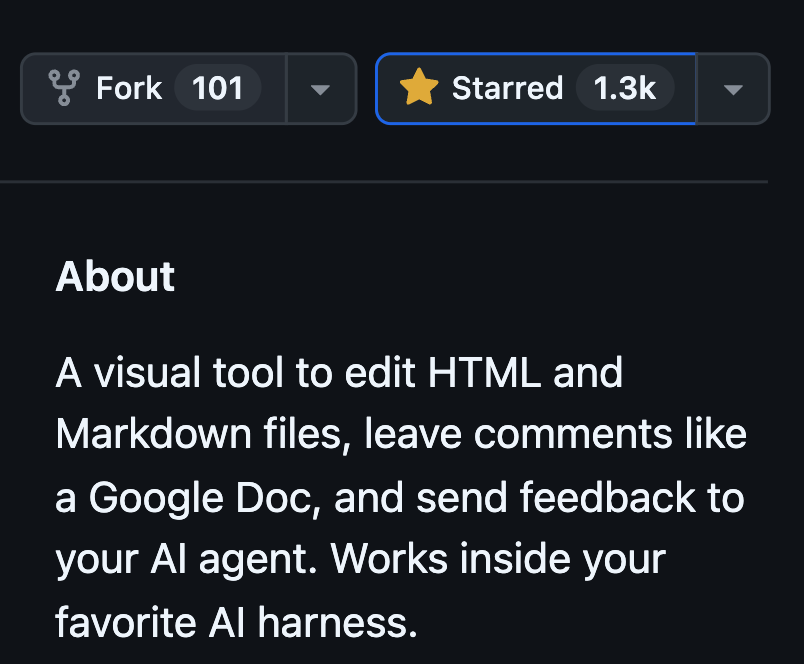
Human Review is a free, open-source tool that opens any HTML or Markdown file in your browser so you can edit it like a Google Doc, leave comments anchored to exact words, and send every change to Claude Code or Codex in one batch. My friend Peter Yang built it. It runs entirely on your computer, with no account, no cloud service, and no API key.
I use it every day now for PRDs, content scripts, and my Substack drafts. Here is how to install it and run a full review in about five minutes.
Why is giving AI feedback in chat so frustrating?
Because chat makes you describe an edit instead of just making it. I would type "in the third paragraph, change X to Y, cut the third card because it repeats the first one, also rewrite the CTA," and the agent would rewrite the entire file. Then I reread all of it to check whether it caught any of my three requests.
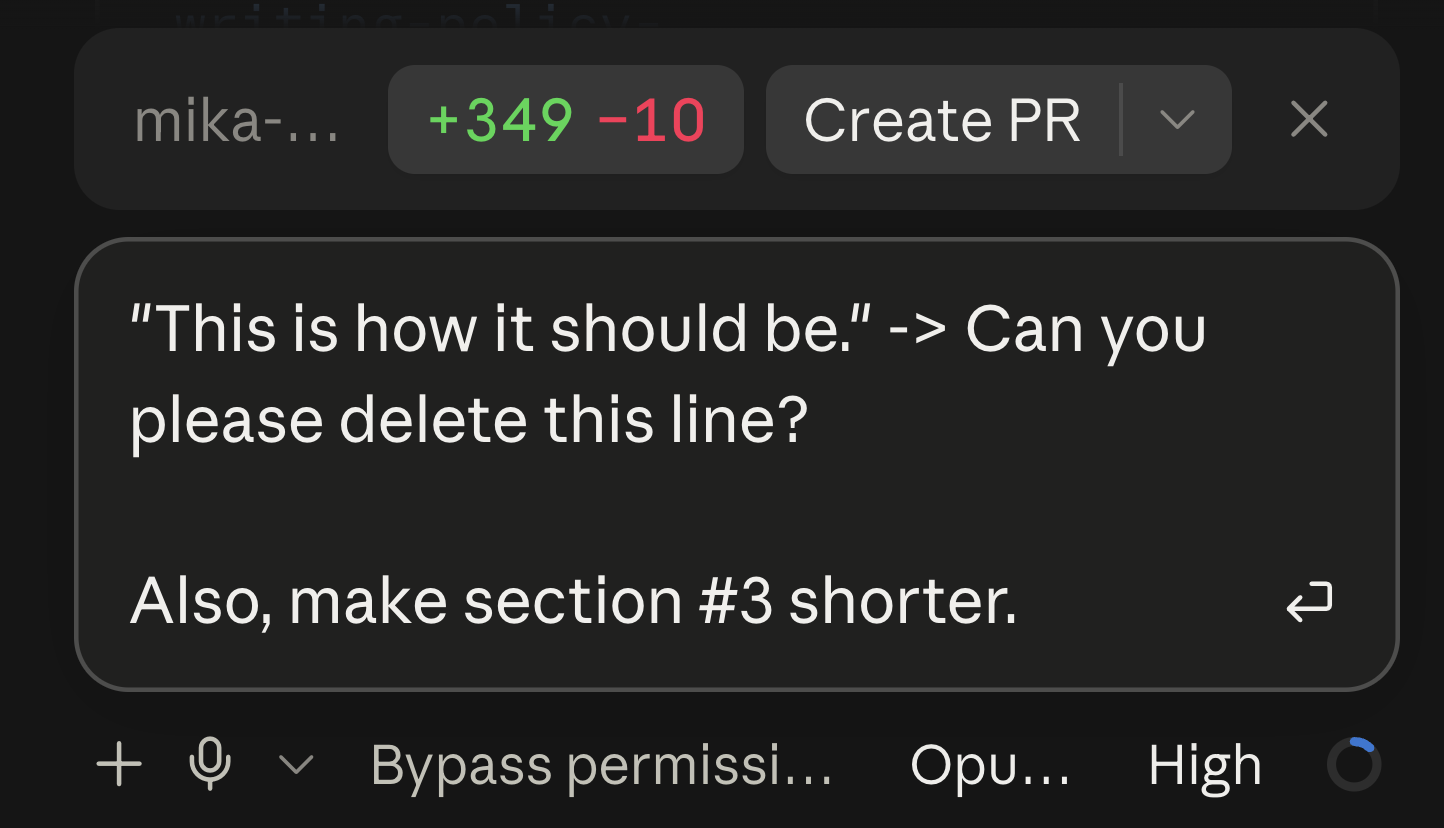
It gets worse the longer the document is.
- A 20-page plan or a multi-page site turns every small fix into a paragraph of instructions.
- Writing the instruction takes longer than the edit would have.
- Human Review flips that around. You make the small fixes yourself, and only write instructions for what you actually want the AI to think about.
Set it up once
1. Install the Human Review skill
- Paste this one line into Claude Code, Codex, or whatever coding agent you use:
Install the /human-review skill globally from https://github.com/petergyang/human-review - Or run
npx -y human-review setup --globalin your terminal. - The global setup writes the skill into your Claude Code, Codex, and shared agent folders, so every project knows the commands.
- A skill is a markdown instruction file your agent reads when it recognizes the task. If that is new to you, start with what a Claude skill actually is.
2. Open the file you want to review
- Ask your agent to open the draft:
/human-review drafts/newsletter.md - It spins up a local page in your browser with your file rendered like a document.
- The Feedback panel sits down the right side.
Key insight: For HTML files, your direct edits and image resizes save to the file automatically. For Markdown files and localhost pages, nothing is written until you hit Send, because your agent has to translate your changes back into the source.
Edit it like a document
Everything below happens in the page itself.
3. Type your fixes straight into the page
- Click into any text and start typing. ⌘B and ⌘I work the way they do everywhere else.
- Use it for the edits you should never describe in chat: a wrong name, a clunky opening line, a number that changed.
- The tool records each one as a before-and-after pair, so the agent gets your exact wording, not a paraphrase. That is what stops the "I only wanted one sentence changed" problem.
4. Build lists and links without typing syntax
- Type
-or1.at the start of a line to start a bulleted or numbered list, or press ⌘⇧8 and ⌘⇧7. - Tab indents a list item and Shift+Tab pulls it back out.
- For links, select the text and press ⌘K. ⌘K again inside an existing link edits or removes it.
5. Resize, move, and paste images
- Drag an image by its corner to resize it, or drag the image itself to a new spot in the document.
- Paste an image straight from your clipboard. On a file review it saves into an
assets/folder next to your document and drops in at your cursor. - On a localhost review, a pasted image gets staged for the agent to place in the app source.
6. Drag whole blocks around, and delete what you do not want
- Hover over any block and a handle appears on its left edge. Drag it to move the whole block, and the agent repositions it in the source without rewriting the words inside.
- You can also just delete elements. No explanation needed in chat, no "please remove the second testimonial card."
- This one is my favorite for cutting the extra copy AI sprinkles into UX, and it pairs well with making AI text sound like you.
Comment, send, and review again
Direct edits cover what you already know. Comments cover the rest.
7. Select a phrase and comment on exactly that text
- Highlight any phrase and the Feedback panel opens a compose box asking "What should change?"
- Type your note and press Enter, or click Add comment. Esc dismisses it if you change your mind.
- Your comment is anchored to that exact string plus the text around it, so the agent finds the right spot even in a long file.
- Use comments for judgment calls, and direct edits for anything you already know the answer to.
8. Click an image, chart, or whole section to comment on it
- Not everything is a sentence. Click an image, a chart, or a section and the compose box labels it as an Element instead of a Selection.
- That is how you say "this chart is the wrong metric" or "this card repeats the one above it."
- Each saved comment gets a Jump to button that scrolls you back to the anchor, useful once you have a dozen stacked up.
9. Add an overall note and hit Send
- The "Overall note…" field at the bottom of the panel takes feedback that is not tied to any one spot, like "the whole thing is too long, cut 20 percent."
- The send button counts your items for you and reads something like "Send 5 to agent." ⌘⏎ does the same thing.
- Everything ships in one batch: every edit, every comment, the overall note, and any other pages you opened.
- Command-click links inside the document to review a multi-page site without losing your markup.
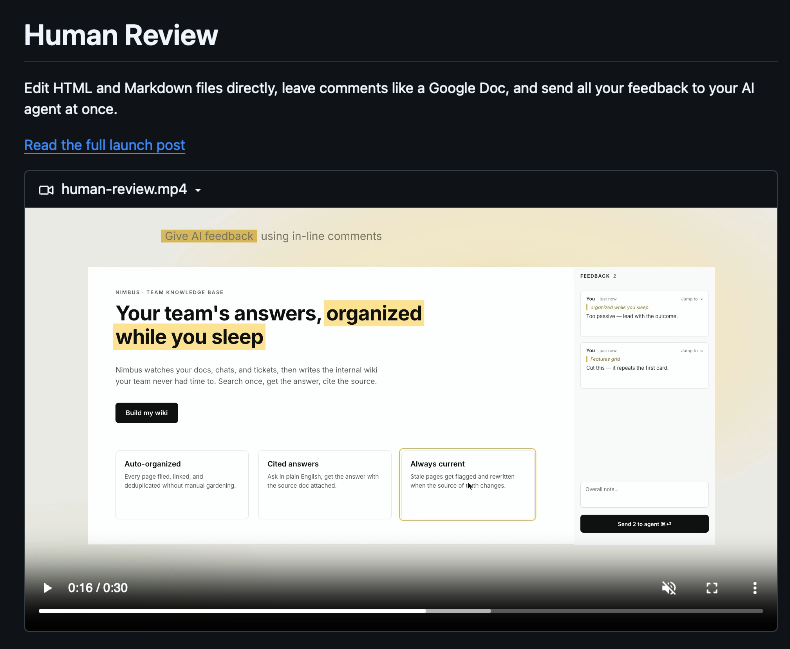
10. Watch your agent apply the batch, then review again
- Your agent is waiting on a poll command. The moment you send, it receives the batch as structured JSON, applies your exact wording to the source, and saves.
- The page reloads on its own, so the fixed version is in front of you.
- There is no reply message and no chat back and forth. You look at the new version, mark up whatever is still wrong, and send again.
- When you are done, click End review at the bottom of the panel to release the agent. Anything you typed but did not send is saved for the next review.
Who is this actually for?
Anyone who reviews written work an AI produced, which by now is most of us.
- You do not need to know how to code.
- You do need a coding agent installed to receive the feedback. If that part is the blocker, my 5-minute Claude Code setup for non-techies gets you there.
The shift was small but it changed my week. I stopped writing paragraphs describing edits and started making them, so the AI only handles the parts that need thinking. I still decide what is off, what stays, and what ships.
Additional Reading
Here are some related guides to check out:
- What is a Skill?
- How to Setup Claude Code (5-Min Guide for Non-Techies)
- How to Create Your Own Custom Skill
- How to Humanize AI Text and Make It Sound Like You
- How to Make Your Website Look Expensive with AI
Frequently asked questions
- Is Human Review free?
- Yes. It is open source under the MIT license and runs entirely on your own computer. There is no account, no cloud service, no database, and no API key, so nothing you are editing leaves your machine.
- Do I need to know how to code to use Human Review?
- No. The review itself is point, click, and type, exactly like editing a Google Doc. You do need a coding agent like Claude Code or Codex installed to receive your feedback and apply it, and one install command sets up the skill for you.
- Why didn't my Markdown edits save to the file?
- That is expected. For HTML files, your direct edits and image resizes save automatically. For Markdown files and localhost pages, nothing is written until you hit Send, because your agent has to apply those changes to the real source and keep the formatting syntax intact.
- Can I use Human Review with Codex and not just Claude?
- Yes. The global setup installs the instructions for Claude Code, Codex, and shared agent folders at the same time, and the feedback comes back as plain JSON, so any agent that can read it can apply it.
Want to build your first AI agent?
Build Your First Agent 101 is the next step! You'll get step by step guides, video tutorials and starter prompts to create your first agent in half a day, customized to your own workflow.
Learn more