How to Stop Collecting AI Guides You Never Use

Co-founder at King’s Cross Labs · ex-LinkedIn PM & Forbes 30 Under 30
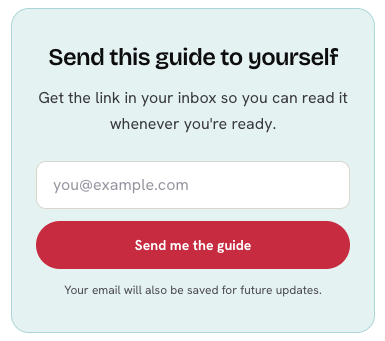
Send this guide to yourself
Get the link in your inbox so you can read it whenever you're ready.
Your email will also be saved for future updates.
You don't have a motivation problem. You have a handoff problem. Saving happens on your phone inside Instagram, doing happens on your laptop inside your actual work, and nothing carries an item from one to the other.
My own Saves folder is full of AI tips I genuinely wanted to try. I saved them, felt productive, and never put one on a to-do list. That's not laziness, it's a broken conveyor belt.
Three moves fix the handoff:
- Have Meta Muse sweep your Instagram Saves on a schedule.
- Email yourself the written guide so it lands where you work.
- Paste that guide into Claude and let it build the thing for you.
Move 1: Get the saves out of Instagram
1. Connect Meta Muse to your Instagram account
- Muse is Meta's personal AI agent. It lives inside the Meta apps, so it reads your Saves directly instead of making you screenshot them.
- Connect Instagram during setup, or add it later from the apps screen. Skip Stripe and the password vault.
- Full walkthrough: the 30-minute Meta Muse setup. It covers memory, apps, WhatsApp, feed and goals in order.
2. Send Muse a standing prompt that sweeps your Saves
- Write it as a recurring instruction with a day and time in it, not a one-off question. Muse keeps working after you close the app.
- Put the delivery target in the prompt too. A digest that stays inside Muse is just a second Saves folder.
Every Sunday at 6pm, open my Instagram Saves from the last 7 days.

For each save, give me:
- the creator and the one-sentence promise of the video
- the single next action it would take to try it
- how long that action would take (5 min / 30 min / a real afternoon)

Sort by shortest action first. Email me the list.
Flag anything I saved more than 30 days ago and still have not done.
Two details do the work in that prompt:
- Asking for the next action turns a bookmark into a task.
- Asking for a time estimate lets you slot it into a calendar gap instead of a vague "someday."
3. Route the output into the tool you already open
- Name the destination in the prompt. Your inbox or your to-do app, not Muse itself.
- Muse asks before it sends messages on your behalf, so expect an approval step the first few times.
- If you make content, run a second version of this prompt. Muse turns the keepers into post ideas with hooks attached, one of the 8 Meta Muse use cases for content creators.
Key insight: A save becomes a task the moment it has a next action and a time estimate attached. Everything else is filing.
Move 2: Move the guide from your phone to your desk
4. Email the guide to yourself while you're still on your phone
- Almost every video I make has a free written guide behind it, and most of you open those guides on a phone, standing in a line somewhere. That's the worst moment to follow install steps.
- So on mobile, every guide on this site has a box right under my byline that emails you the link. The thing you meant to try lands in work mode instead of an app you only open at night.
- The box is mobile-only on purpose. On desktop you already have the guide open where you can act on it, so you get the Substack modal instead.
5. Batch the inbox, don't drip it
- Give the emails one recurring slot instead of reacting to each one as it lands.
- Mine is one block where I open that week's batch and do exactly one of them start to finish.
- One finished beats five skimmed. A guide you half-read is the same as a video you never watched.
Move 3: Turn the guide into something that runs
6. Hit "Copy for AI" at the top of the guide
- Every guide on this site has two buttons near the top: Copy for AI and View as Markdown.
- Copy for AI puts the whole guide on your clipboard as plain text, stripped of navigation and page clutter, which is what an AI assistant reads best.
- Use View as Markdown instead if you're reading in the Instagram in-app browser, where clipboard access is often blocked. It opens the same text in a tab, and you can also append
.mdto any guide URL yourself.
7. Paste it into Claude and ask for the runnable version
Open Claude, paste the guide, and ask for the artifact instead of a summary. A summary puts you back where you started.
Here is a guide I want to actually use.

Turn it into a Claude Code skill I can install: a SKILL.md with a name,
a description that says when to trigger it, and the steps as instructions.

Then give me the exact install commands for my machine, one at a time,
and wait for me to confirm each one worked before you give me the next.- A skill is a knowledge package Claude pulls in by itself whenever it recognizes you're doing that task, so you build it once and stop re-explaining.
- New to skills? Start with what a skill actually is, then how to create your own custom skill.
- You'll need Claude Code set up to install one. That takes about five minutes and no coding.
Additional Reading
Here are some related guides to check out:
Frequently asked questions
- Can I do this without Meta Muse?
- Yes. Muse is only the collection step, and you can do that by hand in ten minutes: open your Instagram Saves, write each one into your to-do app with a next action and a time estimate, then clear the folder. The email-to-yourself step and the Claude step both work on their own with no Muse account at all.
- How do I email a guide to myself if I am on my laptop?
- The email box only appears on mobile, so on a laptop you already have the guide open where you can act on it. If you want it in your inbox anyway, copy the URL and send yourself a one-line email. The point of the box is the phone-to-desk handoff, not the email itself.
- What does the Copy for AI button actually copy?
- The full text of the guide in plain Markdown, with no navigation or page formatting, which is about a tenth the size of the web page. Paste it into Claude or ChatGPT and the assistant reads the steps and commands cleanly. If the button does nothing, you are probably in an in-app browser that blocks clipboard access, so use View as Markdown instead.
- Do I need to know how to code to turn a guide into a skill?
- No. You need Claude Code installed, which is a five-minute setup, and then you paste the guide and ask Claude to build the skill and hand you the install commands one at a time. Claude writes the files and tells you what to run. You are copying and pasting, not writing code.
Want to build your first AI agent?
Build Your First Agent 101 is the next step! You'll get step by step guides, video tutorials and starter prompts to create your first agent in half a day, customized to your own workflow.
Learn more